Google Drive is one of the most widely used tools for storing and sharing files.
But for creative teams managing large volumes of visual content, it quickly becomes hard to navigate, difficult to search, and ultimately inefficient for most creative workflows.
What to look for in a Google Drive alternative
If you or your team works with visual content, storage alone isn’t enough.
Here’s what actually matters:
- Visual organization — browse assets, not folders
- AI-powered search — find files by content, not just names
- Creative collaboration — review, comment, and iterate on assets
- Flexible, beautiful sharing — present work, not just send files
- Scalable workflows — built for growing teams and content libraries
👉 Tools like Google Drive weren’t designed for creative workflows — modern DAM platforms are.
Playbook vs. Google Drive
A creative workflow platform — not just cloud storage
| Playbook | Google Drive | |
|---|---|---|
| Core positioning | Creative workflow platform for managing and collaborating on visual content | Cloud storage + document collaboration |
| Best for | ✅ Creative teams, marketing teams, agencies | ⚠️ General file storage and document workflows |
| Search & AI | ✅ AI tagging, visual search, conversational search | ⚠️ Search relies on file names, text, and basic indexing |
| Organization | ✅ Visual boards + AI organization + custom structure | ❌ Folder and subfolder hierarchy |
| Visual browsing | ✅ Image-first interface with rich previews | ⚠️ Limited previews, list-based navigation |
| Collaboration & review | ✅ Asset-level comments, version comparison, video review | ⚠️ Strong for docs, limited for creative asset workflows |
| Sharing & presentation | ✅ Client galleries, branded pages, presentation-ready output | ⚠️ File links and folder sharing |
| File support | ✅ Built for RAWs, PSDs, videos, large creative files | ⚠️ Supports most file type but not optimized for creative workflows |
Why Teams Choose Playbook
1. See your work — not just file names
Google Drive organizes everything in folders and lists. Playbook is built for visual content, displaying assets in preview-first galleries.
- Image-first interface with large previews
- Browse videos, PDFs, and Adobe files visually
- Instantly recognize assets without opening them
👉 You can scan your entire library in seconds.
2. Find assets without having to remember where they live
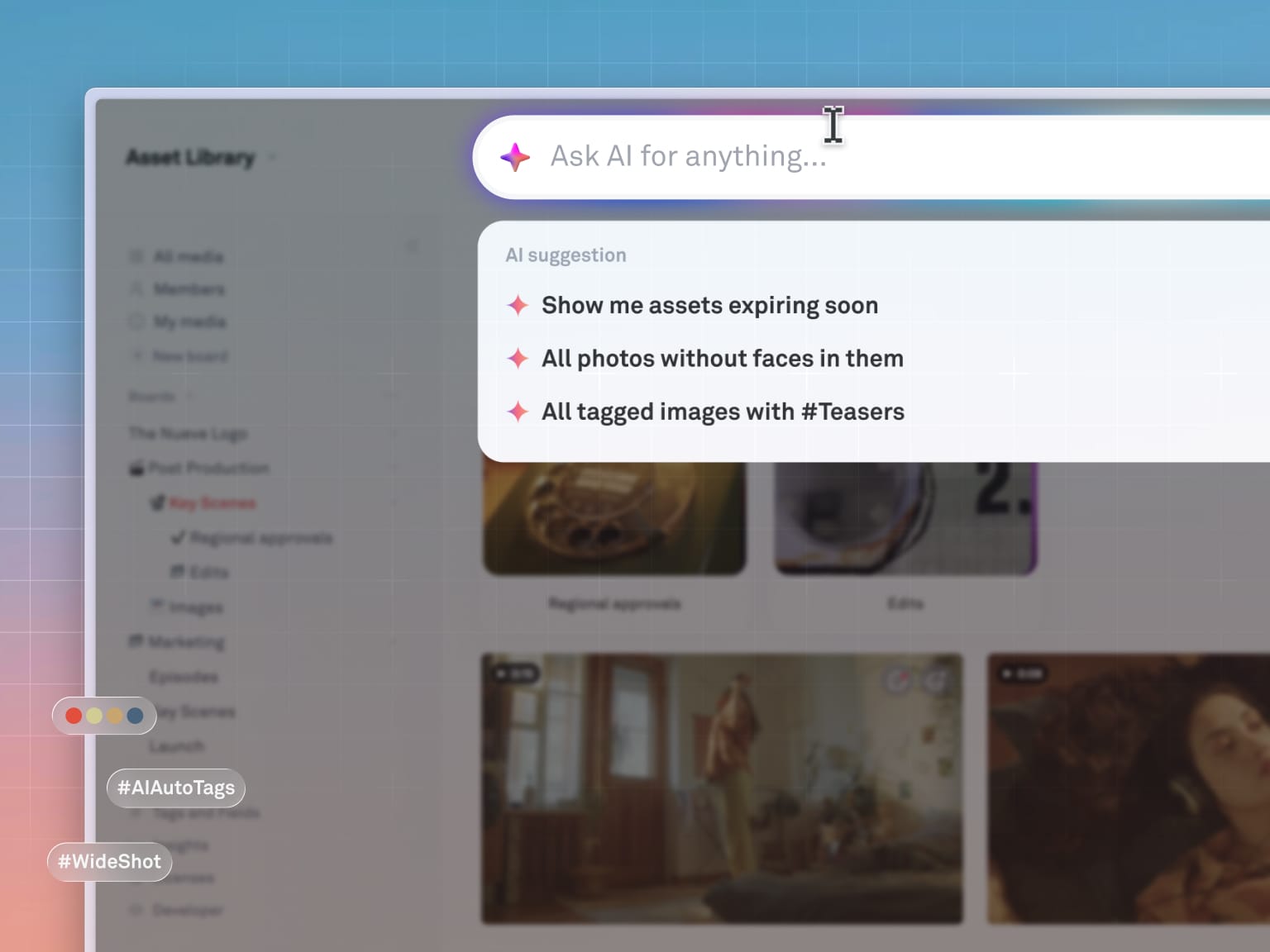
Google Drive depends on file names, folder structure, and manual organization. Meanwhile, Playbook uses AI to automatically enrich content when its uploaded with AI tags, recognizing visual attributes, situational context, and even color schemes. This allows you to search by what you see and repurpose your archives for more creative value.
👉 Find assets like: “product photos with gold packaging” instantly.
3. Built for creative collaboration — not just documents
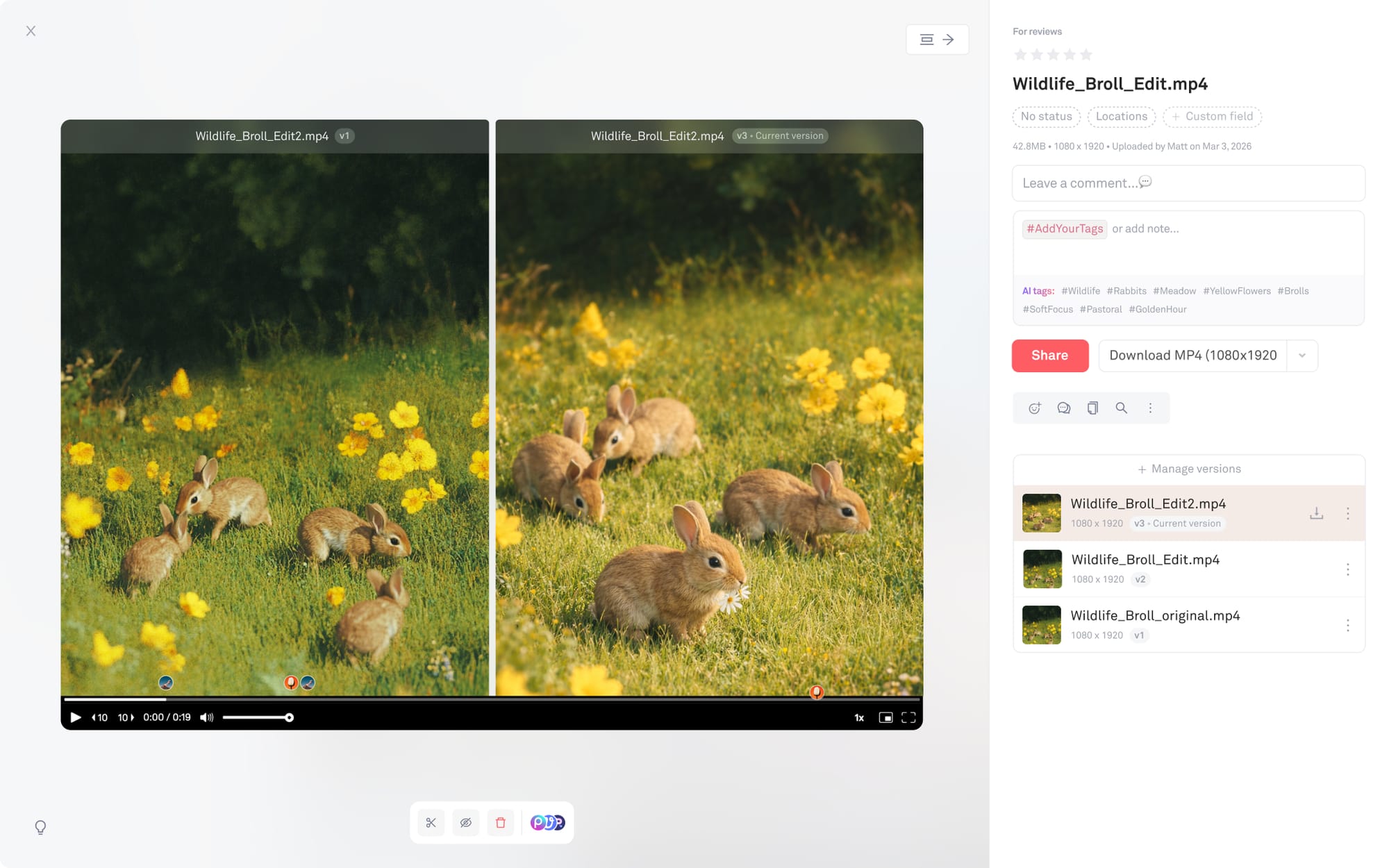
Google Drive excels at docs, sheets, and text-based collaboration. But creative workflows require more. Playbook supports feedback directly on images and videos, version comparison across iterations, quick reacts and ratings, and real-time collaboration on assets.
👉 Built for design, marketing, and content teams not just documents.
4. Share work the way it’s meant to be seen
Google Drive sharing = a link to a folder. Playbook turns your work into something you can actually present:
- Create client-ready galleries with clean, visual layouts
- Publish personal portfolios, brand guidelines, event photos, and more in seconds
- Use ready-made templates from the template gallery
- Customize how your work is organized and displayed
👉 Your work deserves to be showcased and experienced — not just downloaded.
5. Built for large-scale creative libraries
Creative teams aren’t just managing files — they’re managing people, workflows, and access across projects.
Playbook is built to scale with that complexity:
- Granular roles and permissions for teams, external partners, and clients
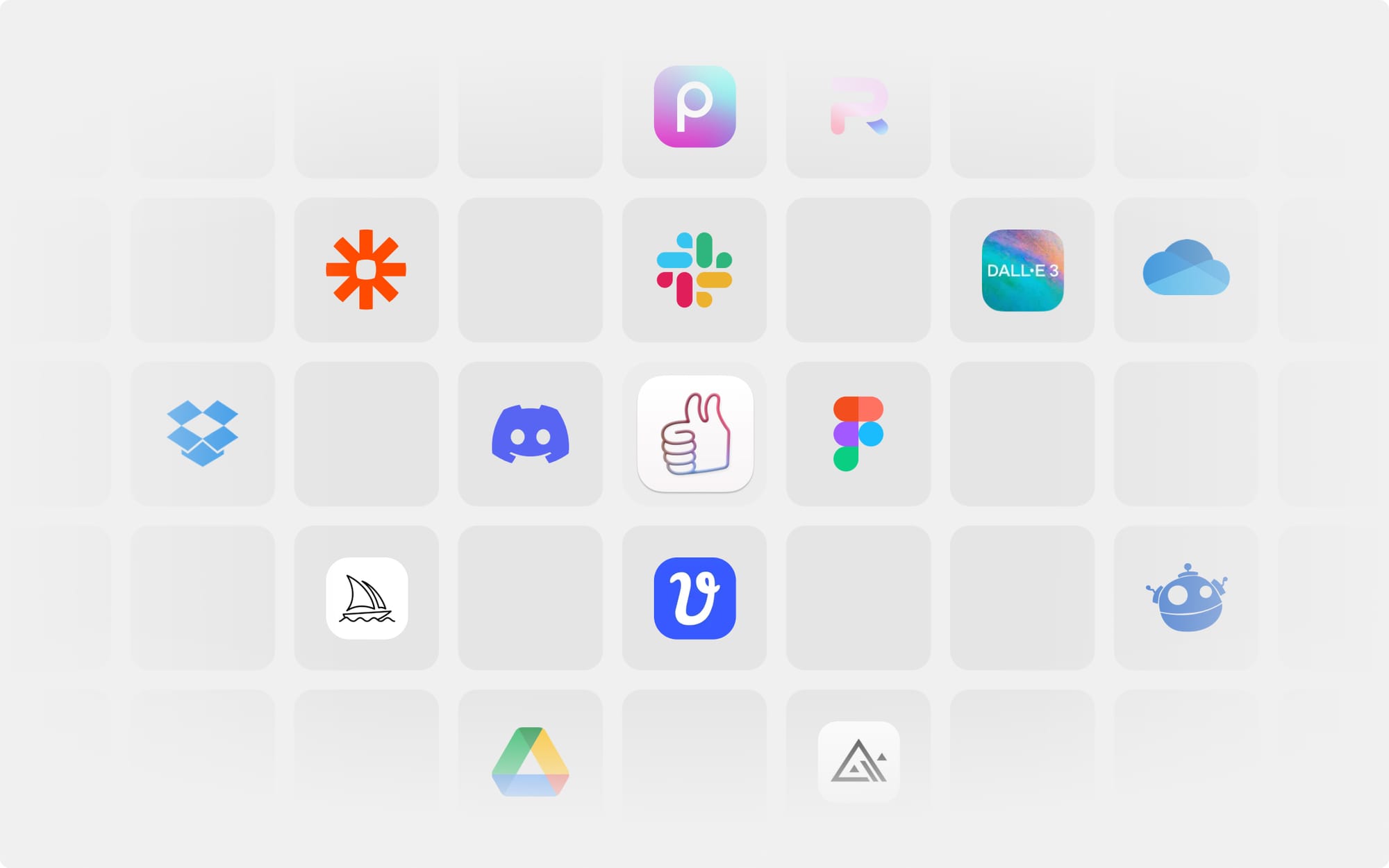
- Integrations and API available to connect with your broader tool stack
- MCP (Model Context Protocol) to connect your assets to AI tools and agents
👉 As your team grows, Playbook becomes more than storage — it becomes the system your creative operations run on.
6. Proven at scale — from Google Drive to Playbook
Teams using Google Drive often hit scaling issues as content grows.
Block Renovation, for example, switched from Google Drive to Playbook to streamline workflows and improve organization across projects.
👉 Instead of managing scattered folders, they were able to centralize and structure their assets in one system.
Similarly, BlendJet now manages over 17TB of assets in Playbook — something that became increasingly difficult to manage in Google Drive.
“I didn't think we needed Playbook at first, given we were already using Google Drive — but I couldn’t have been more wrong. Playbook has revolutionized the way we manage and maximize our digital assets. With AI-generated metadata and labelling, finding specific files — like photos of Mint BlendJet 2s — is effortless and incredibly fast. Sharing curated libraries with partners is smooth and intuitive, allowing us to extract far more value from our assets than ever before. It’s a joy to use, saves us time, and has made our team more efficient and effective.”
- Ryan Pamplin, Cofounder and CEO at Blendjet
Final takeaway
Google Drive works well when your files are few and serve one-off purposes. But as creative work scales, it starts to break down:
- Assets get scattered across folders and shared drives
- Finding the right file depends on naming and memory
- Creative workflows happen outside the platform
Playbook replaces that with a system built specifically for visual work:
- Organize content the way you use it — not where you stored it
- Find assets by what they look like, not what they’re called
- Collaborate, review, and share without switching tools
👉 Spend less time navigating files and more time creating.
FAQ
Is Google Drive a DAM?
No — Google Drive is a cloud storage and document collaboration tool. While it can store files, it lacks advanced DAM features like visual browsing, AI tagging, and creative workflow support.
How do I migrate from Google Drive to Playbook?
Playbook is integrated with Google Drive to make it easy to transfer files over. You can import directly from Google Drive into Playbook by connecting an existing Google Drive account. Files and folders can be imported in bulk while preserving structure during migration.
Will I lose my folder structure when switching from Google Drive?
No — your folder structure can be preserved during import. Once in Playbook, you can keep your existing structure or reorganize into visual boards and workflows. On Team plans, Playbook will automatically AI tag all uploaded and imported files so that your entire media library becomes filterable and findable later on.