

Creating a new board
How to create a new board on Playbook.
Learn what Playbook does, who it's for, and how we handle visual files
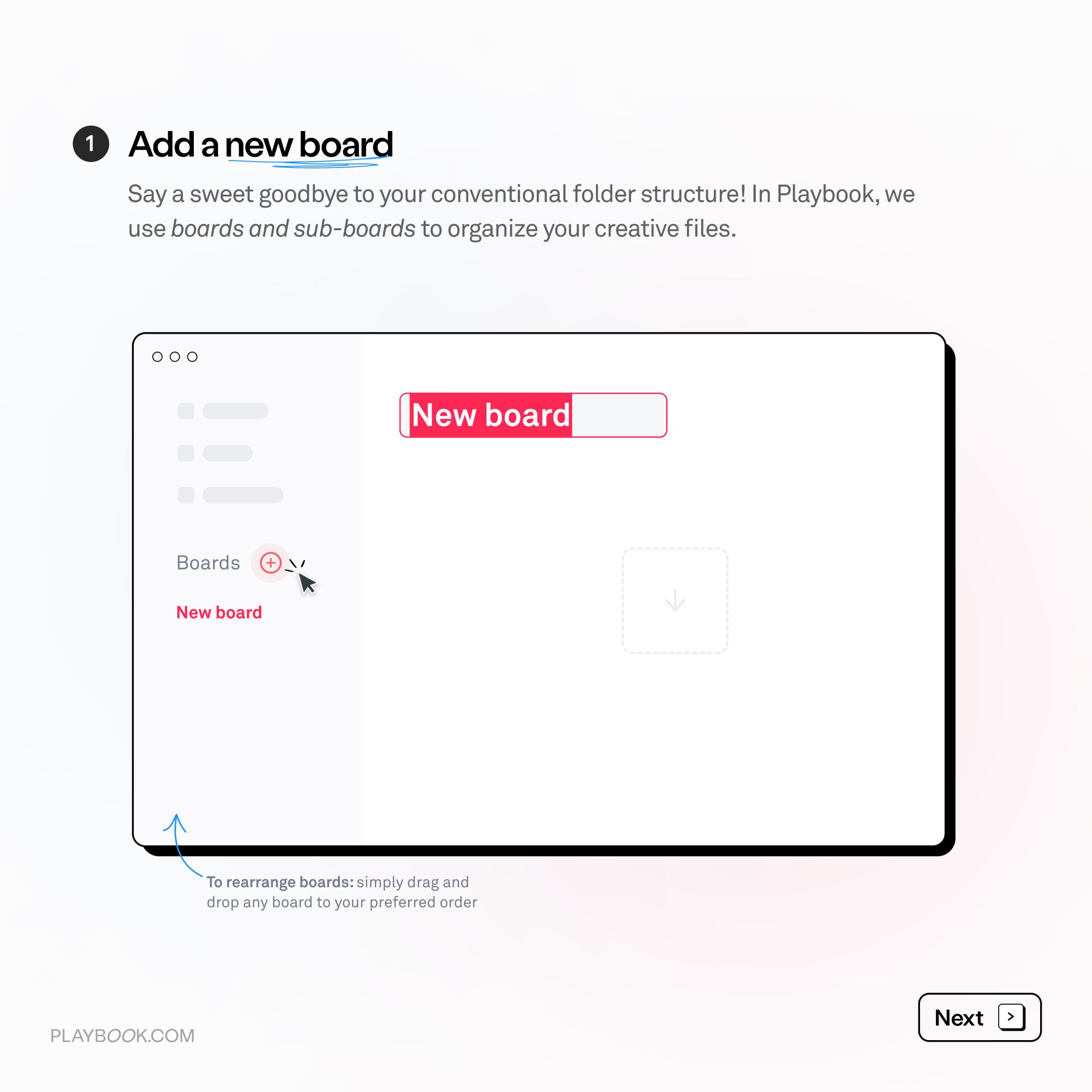
How to create a new board on Playbook.
Your Playbook questions answered: Tutorials and other popular user queries.
Beta program Be the first to try new Playbook tools Join our community of early

In Playbook, you can create licensing PDF for your clients and mark your work copyrighted.
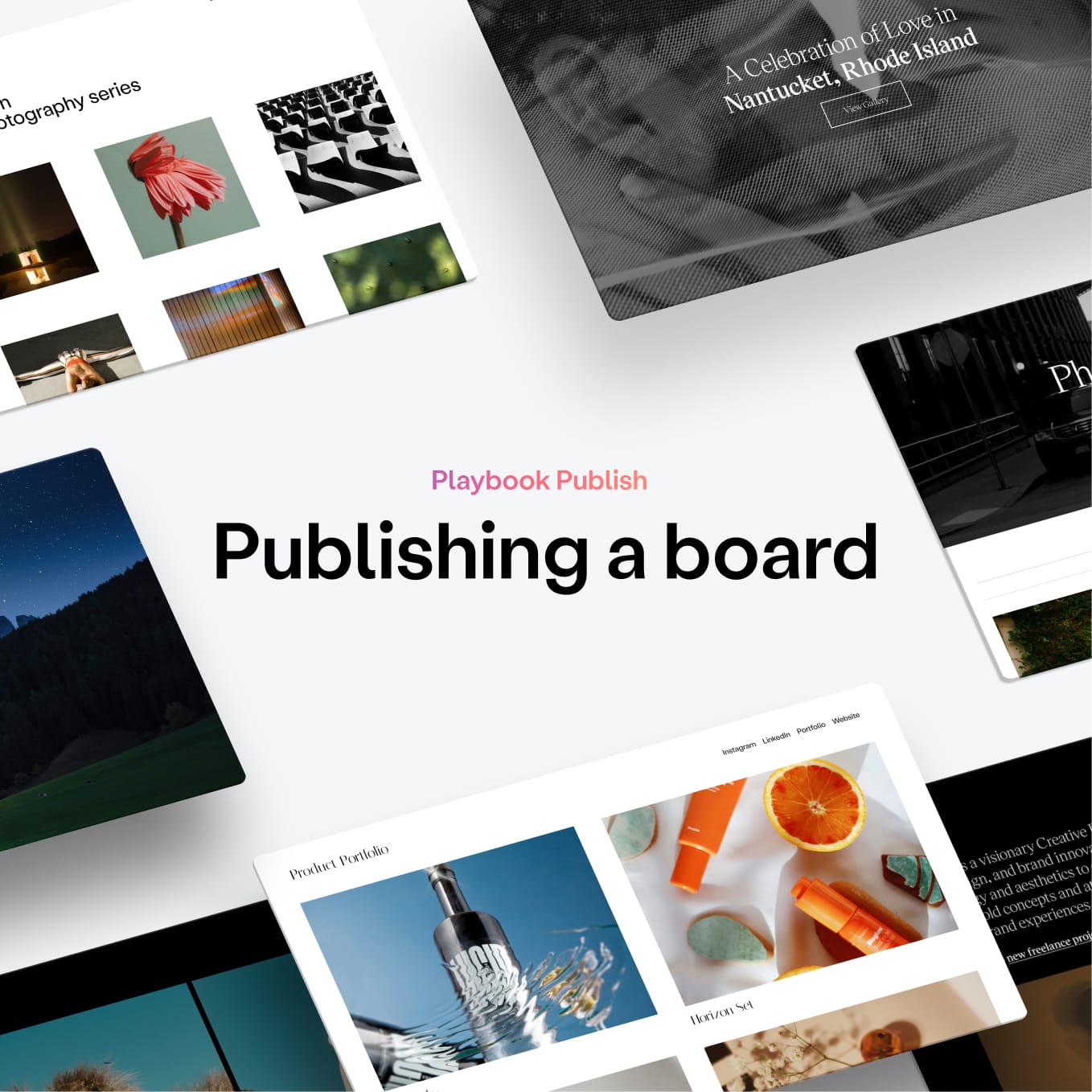
Step 1: Prepare your board, description, and assets. Step 2: Select a template in the
How to create a new board on Playbook.

Step 1: Drag files from your desktop and drop into a board You can also click on (+) Add to Upload your files. Step 2: Check

Step 1: Click on “Apps” Step 2: Under "Sync tools", select Google Drive, Dropbox, or OneDrive Step 3: Authenticate with the storage provider
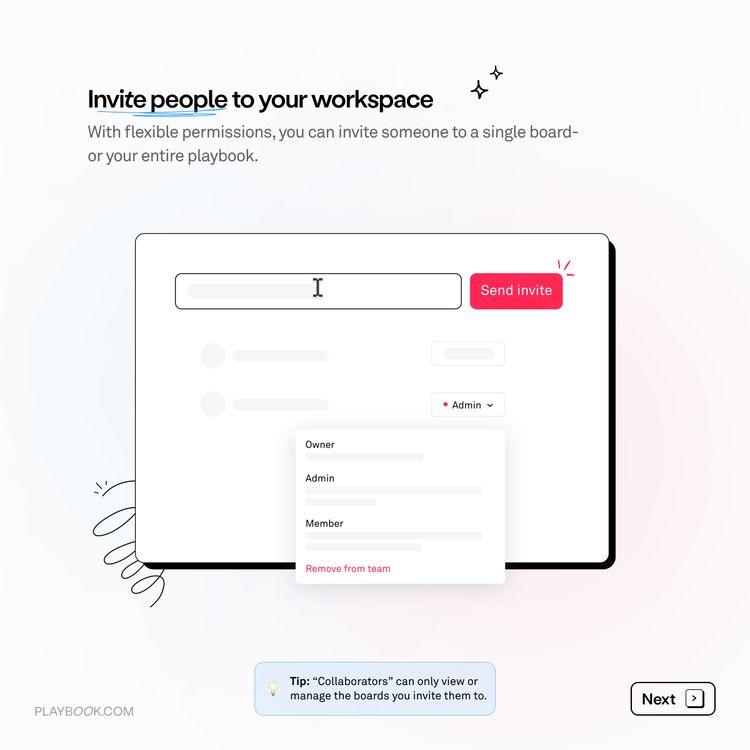
Step 1: Navigate to “Members” in the upper left part. Note, inviting people to a board is not the same as inviting them to your

Step 1: Access the board intended for collaboration. Step 2: Click on Share. Step 3: Invite by entering the collaborator’s email under "Invite
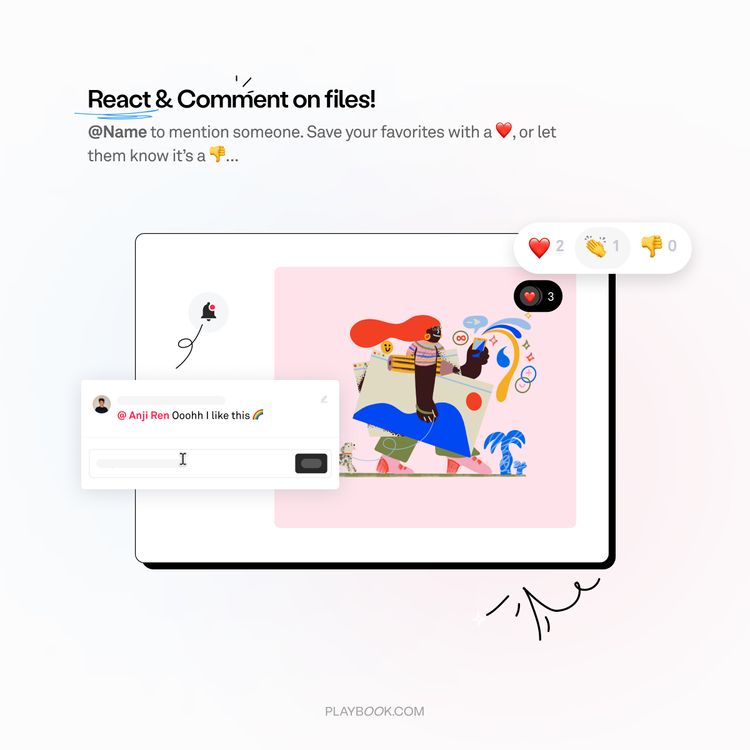
Step 1: Select ❤️ in the top right corner of an asset in a board. There are multiple reactions available. Step 2: Navigate to “My Media”
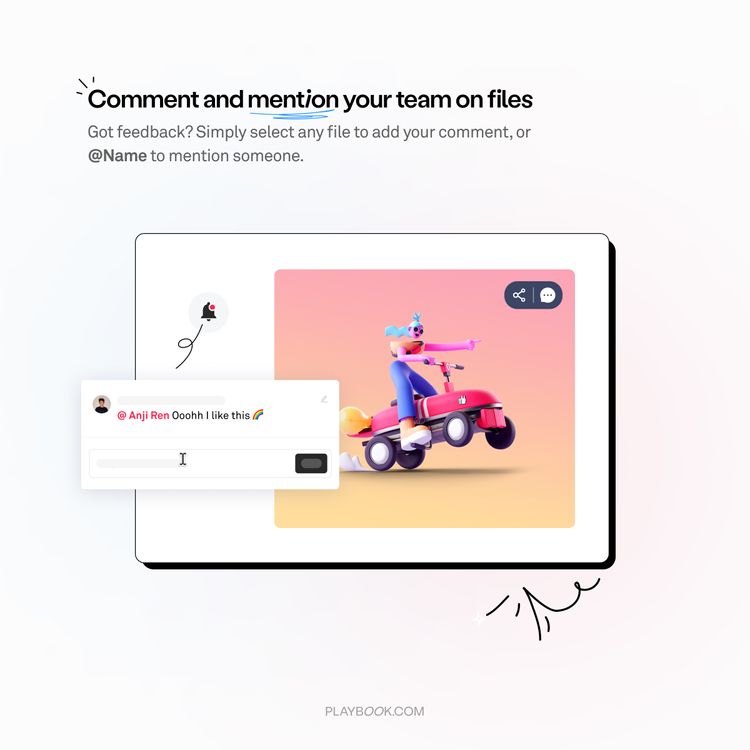
Step 1: Click the comment icon in the top right corner of an asset in a board. You can also comment on specific parts of
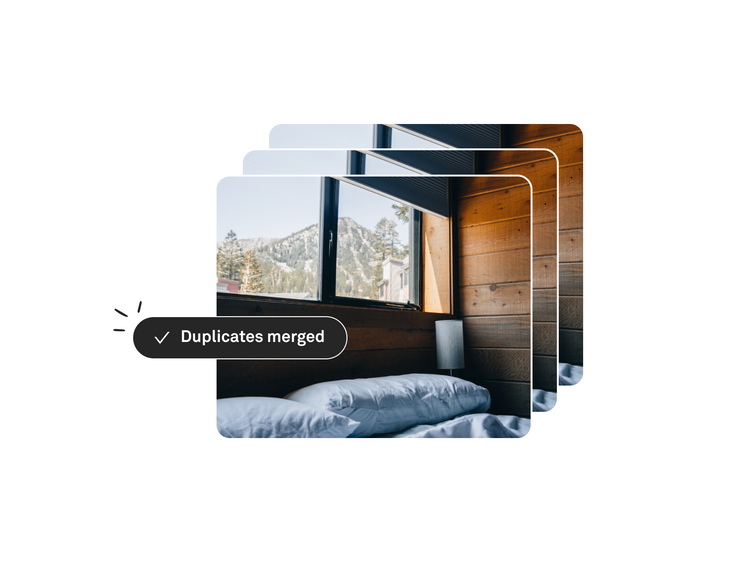
There are a ton of ways that grouping files can elevate your workflow! From managing versions of your work to adding reference links to your
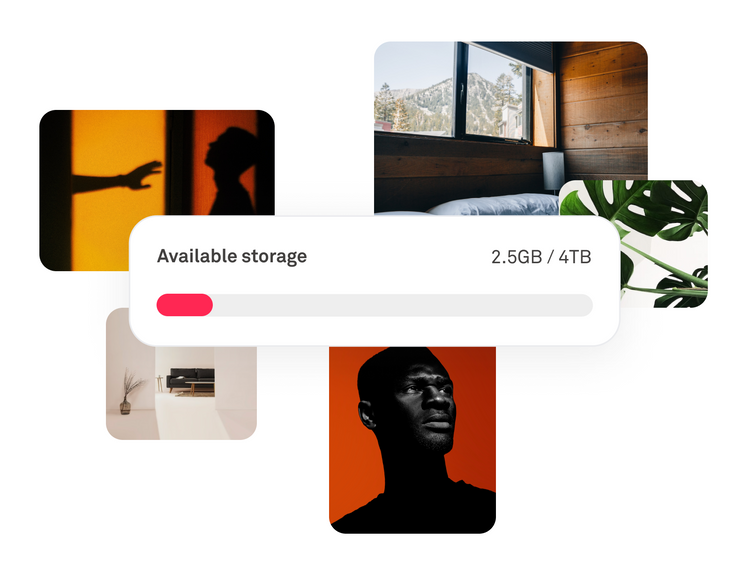
Step 1: Click the Settings icon (three dot icon). Step 2: Download 😉 It will start downloading the assets. Fun fact: Playbook preserves your existing folder
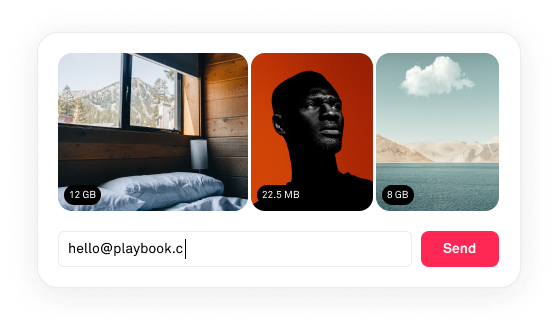
Here are four simple ways to share files! Sharing a single file via link Step 1: Navigate to the file you want to share. Step
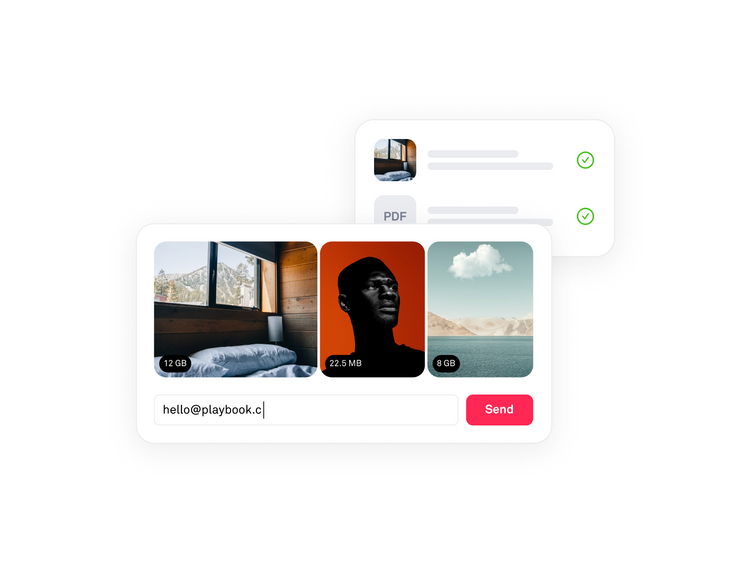
💡 Shared files aren't indexed by search engines like Google by default. Click on any individual file and Share via link under Share.

Step 1: Navigate on the upper middle part of your board and click on Publish. Step 2: Click the Customized text box to customize your
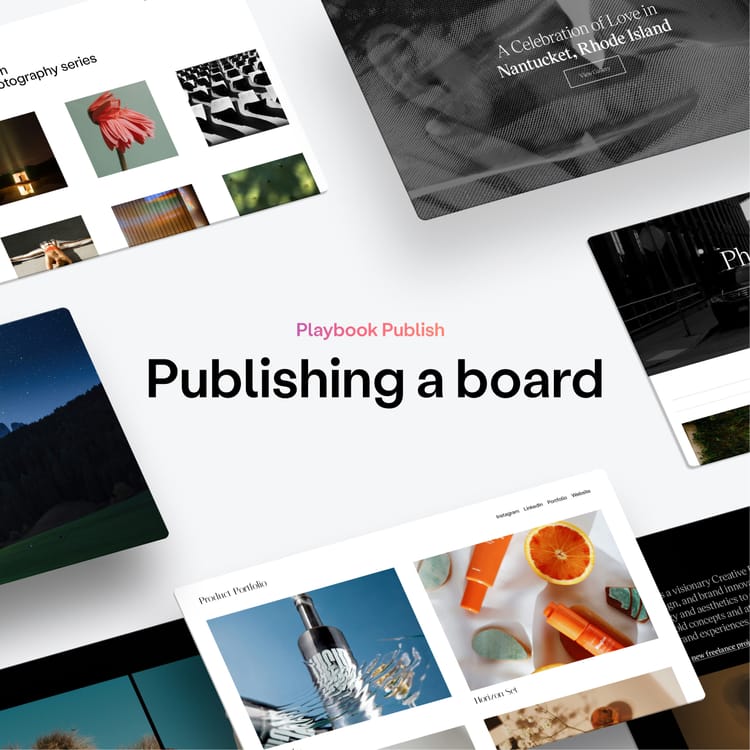
Step 1: Prepare your board, description, and assets. Step 2: Select a template in the sidebar. Try out all the different layouts, and pick your
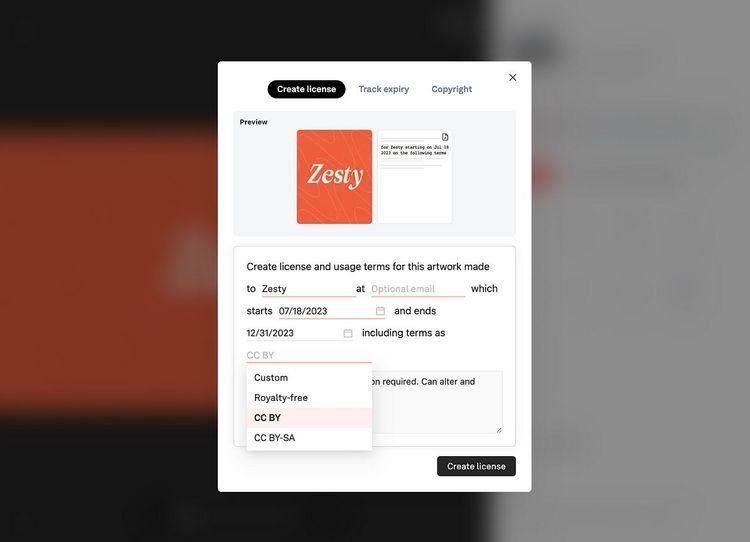
In Playbook, you can create licensing PDF for your clients and mark your work copyrighted. How to copyright your work Step 1: Choose a file
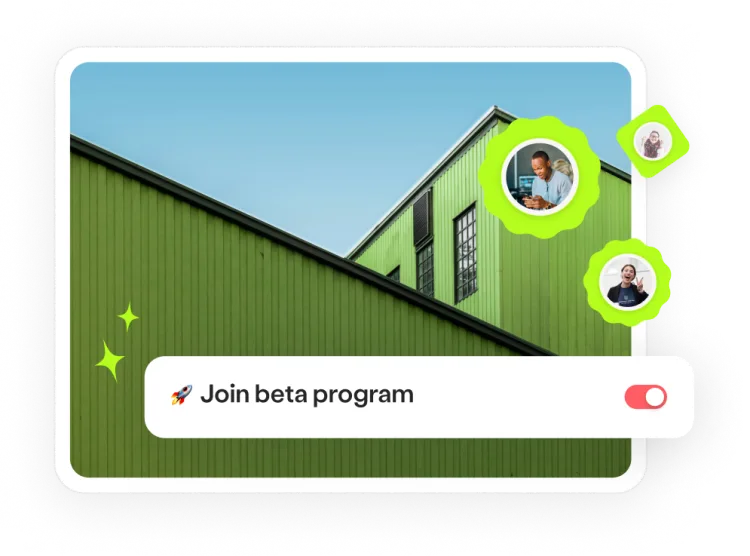
Beta program Be the first to try new Playbook tools Join our community of early adopters and gain exclusive access to the latest pre-launched features.
Your Playbook questions answered: Tutorials and other popular user queries.

Learn what Playbook does, who it's for, and how we handle visual files for creatives, agencies and large teams. Playbook started because we