Archive vs. Delete
Learn the difference between Archive and Delete to keep your workspace tidy without the fear of losing your work.
As your creative library grows, your main boards can become crowded with finished projects and outdated drafts. In Playbook, you don't have to keep everything in your immediate line of sight just to keep it safe.
Archive: The 'Safety Vault'
Archiving removes assets or entire boards from your active workspace but keeps them searchable, downloadable and easy to restore anytime.
When to Archive:
- Complete projects: You've finished a client board but want to keep the source files for future requests.
- Old versions: You have "v1" through "v10" and only want the Final version to be visible, but want to keep history safe.
- Seasonal content: Assets you only need for certain period, like holiday campaigns.
How to Archive:
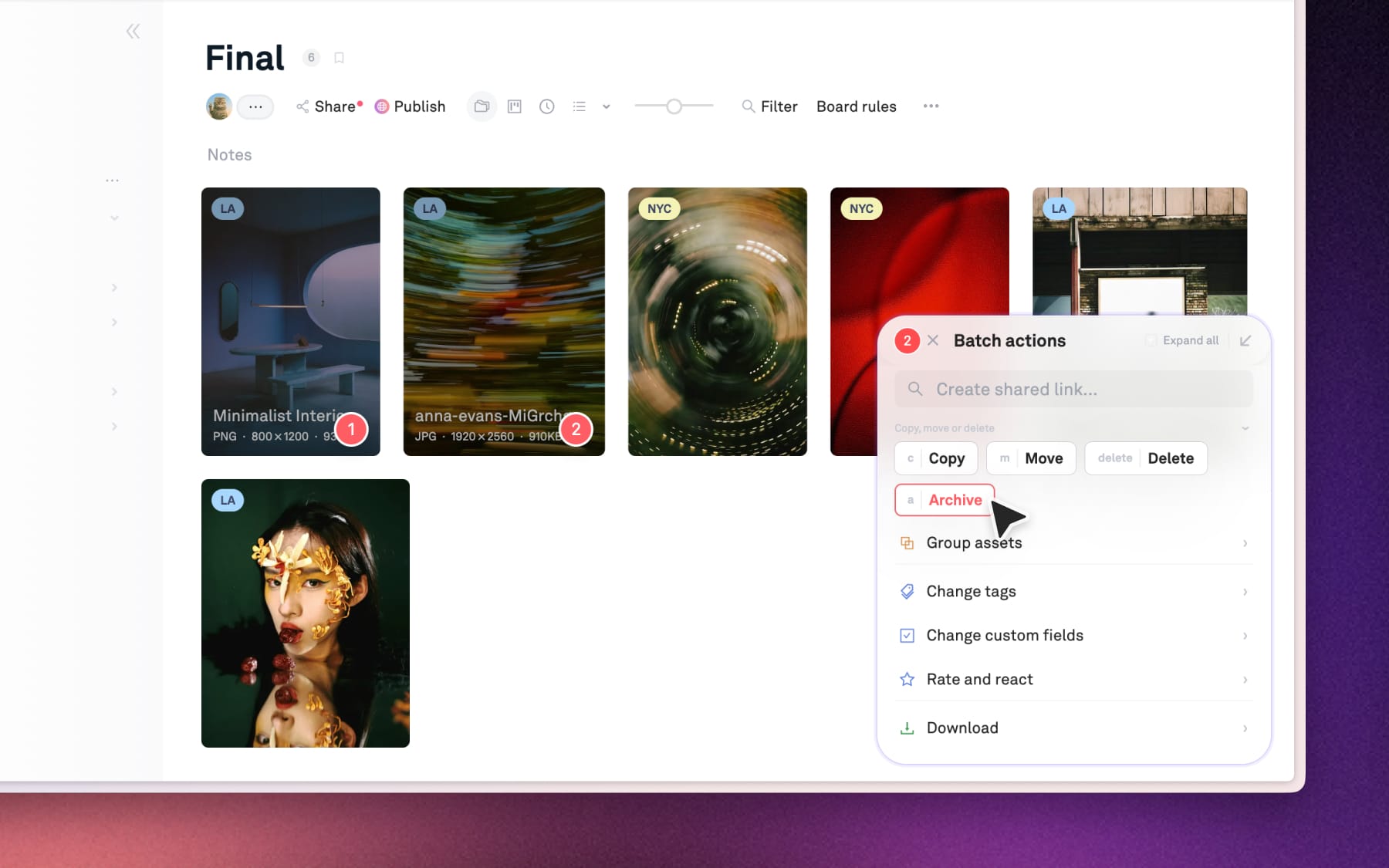
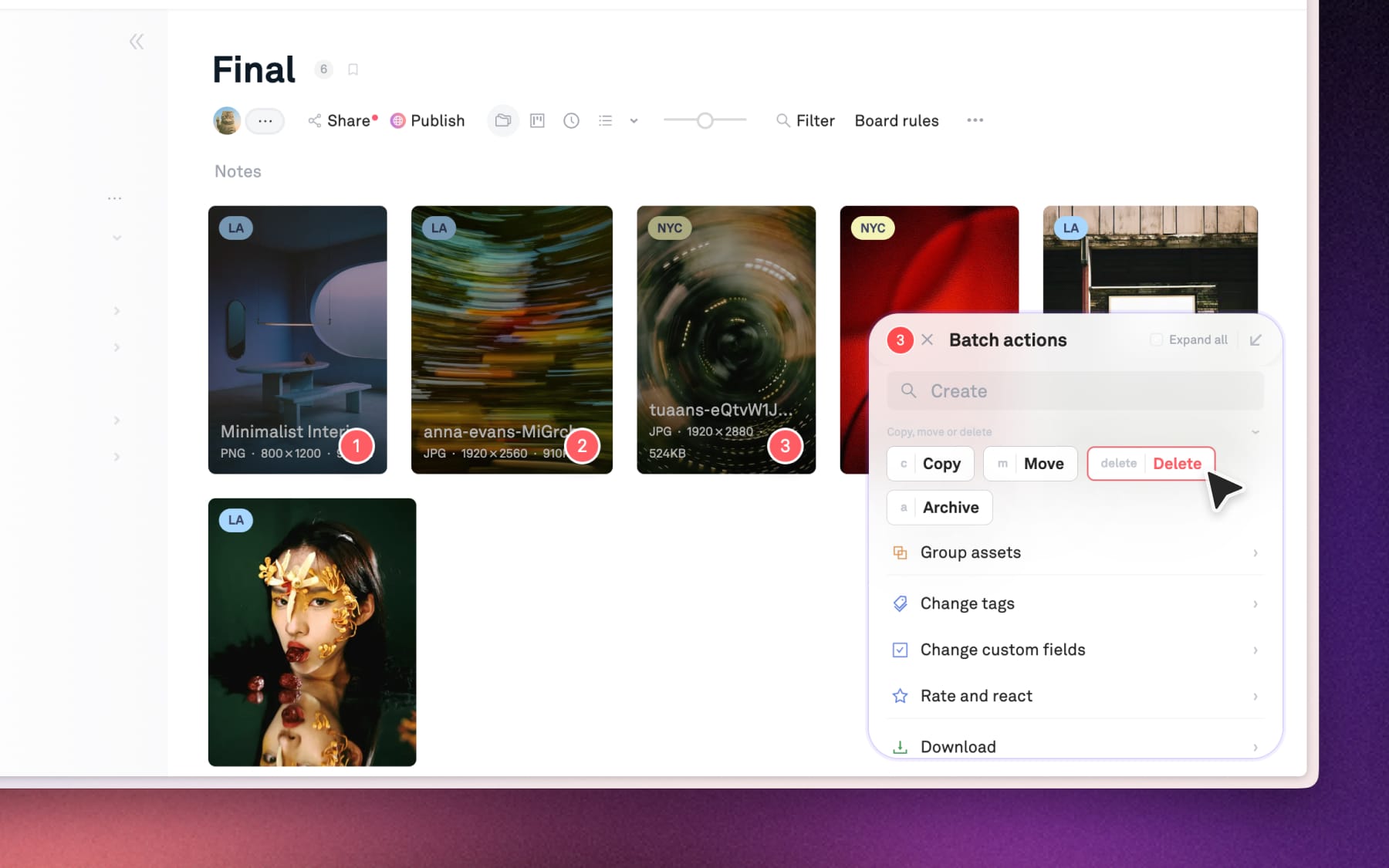
For individual assets: Select your files, open Batch actions → click Archive.
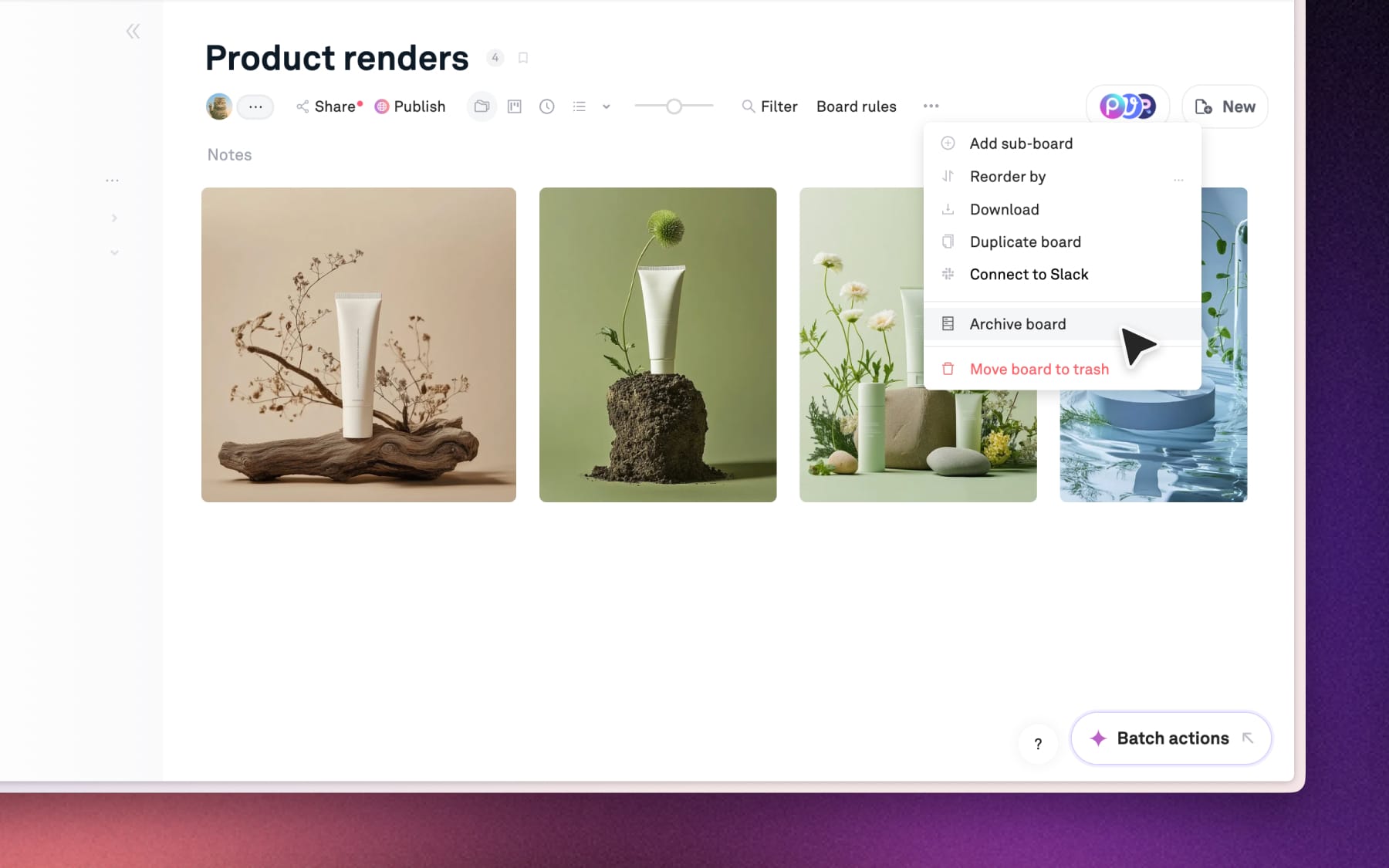
For entire boards: Click the (•••) icon next to the board name in the left sidebar or at the top of the board → select Archive from the menu.
Delete: The "Trash Can"
When you delete an asset or a board, it moves to Trash where it stays for 30 days until it is permanently removed.
When to Delete:
- Mistakes: Blurry shots, accidental duplicates, or screenshots you only needed for a moment.
- Junk files: Temporary exports or "test" files that have no future use.
How to Delete:
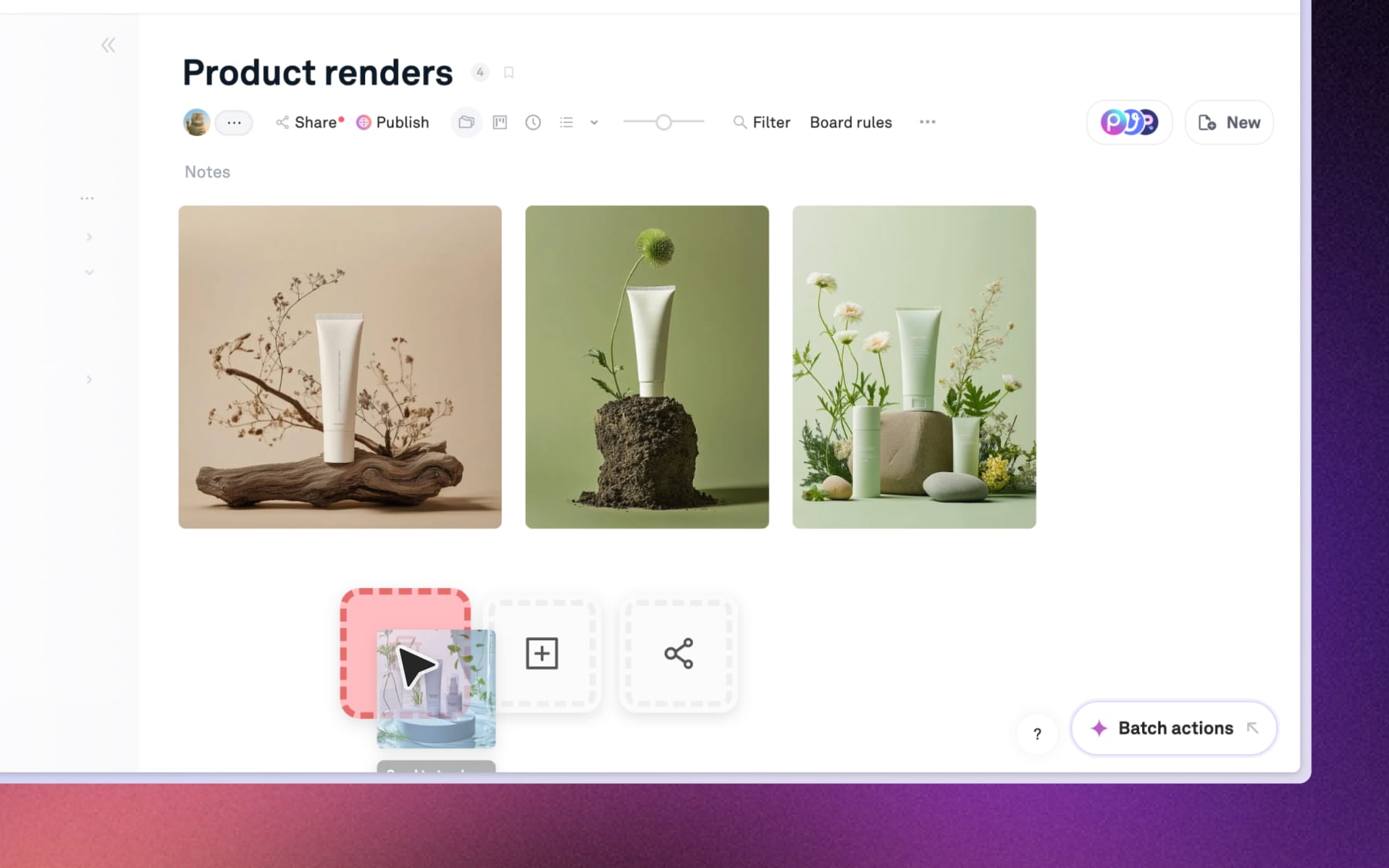
Drag-and-Drop (assets only): Click and drag selected assets to the Trash dropzone, the square with the Trash icon appears toward the bottom of your screen.
Batch actions (multiple assets): Select your assets, open Batch actions → click Delete.
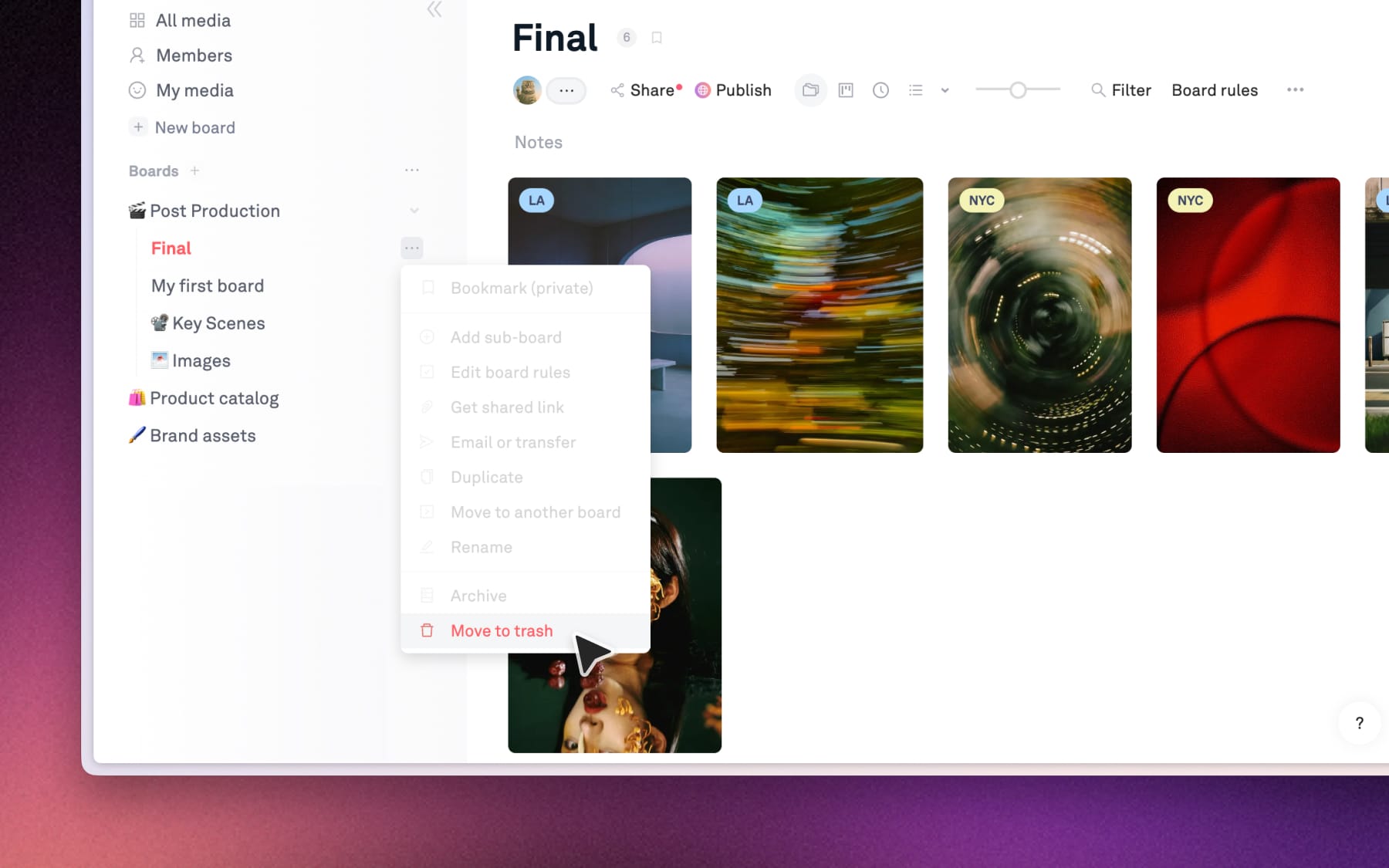
Board menu (boards): Click (•••) next to the board name in the left sidebar or at the top of the board and select Move to trash in the menu.