Board rules
Learn how to use Board rules to require specific information during uploads or automatically tag and categorize new uploads.
Board rules allow you to set "guardrails" or "reminders" for your workspace, ensuring that every file uploaded is properly labeled from the start. By automating the tedious parts of data entry from the start, you and your team can spend less time tagging and more time creating.
There are two primary ways to use Board rules: requiring metadata upfront or auto-apply predefined tags and fields.
Require fields on upload
If an upload is missing a required field, it will remain hidden until the information is added, even when you share the board.
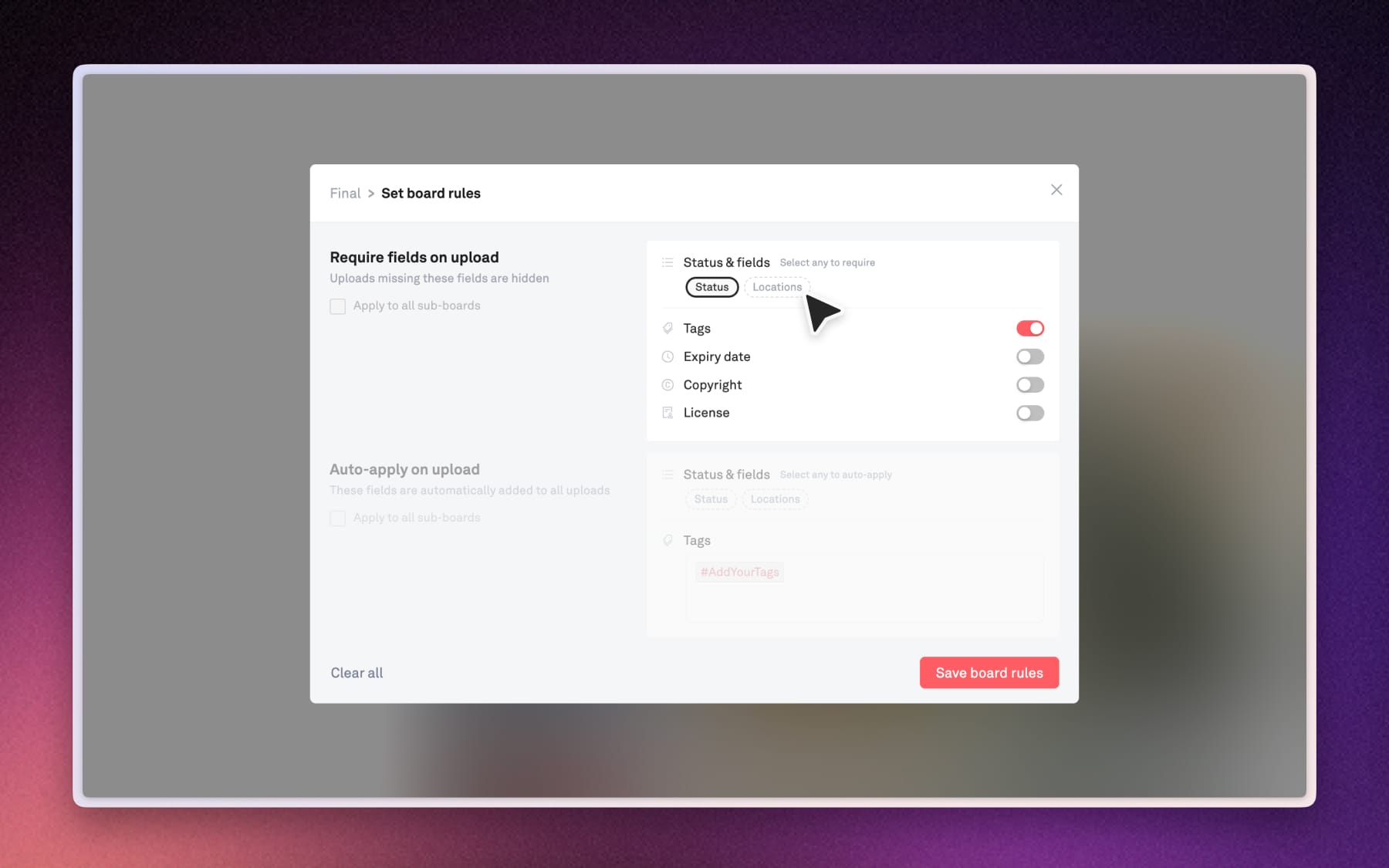
- How to set rules: Click the Board rules button in your board header to open the settings modal
- Select your requirements: Choose which fields must be filled out before the file is accepted. Common requirements include:
- Status & custom fields: Ensure a "Status" or a custom field (i.e: Location) is selected during upload.
- Tags: Require at least one descriptive #tag.
- Legal metadata: Require an Expiry date, Copyright information or a specific License for every asset.
Auto-apply on upload
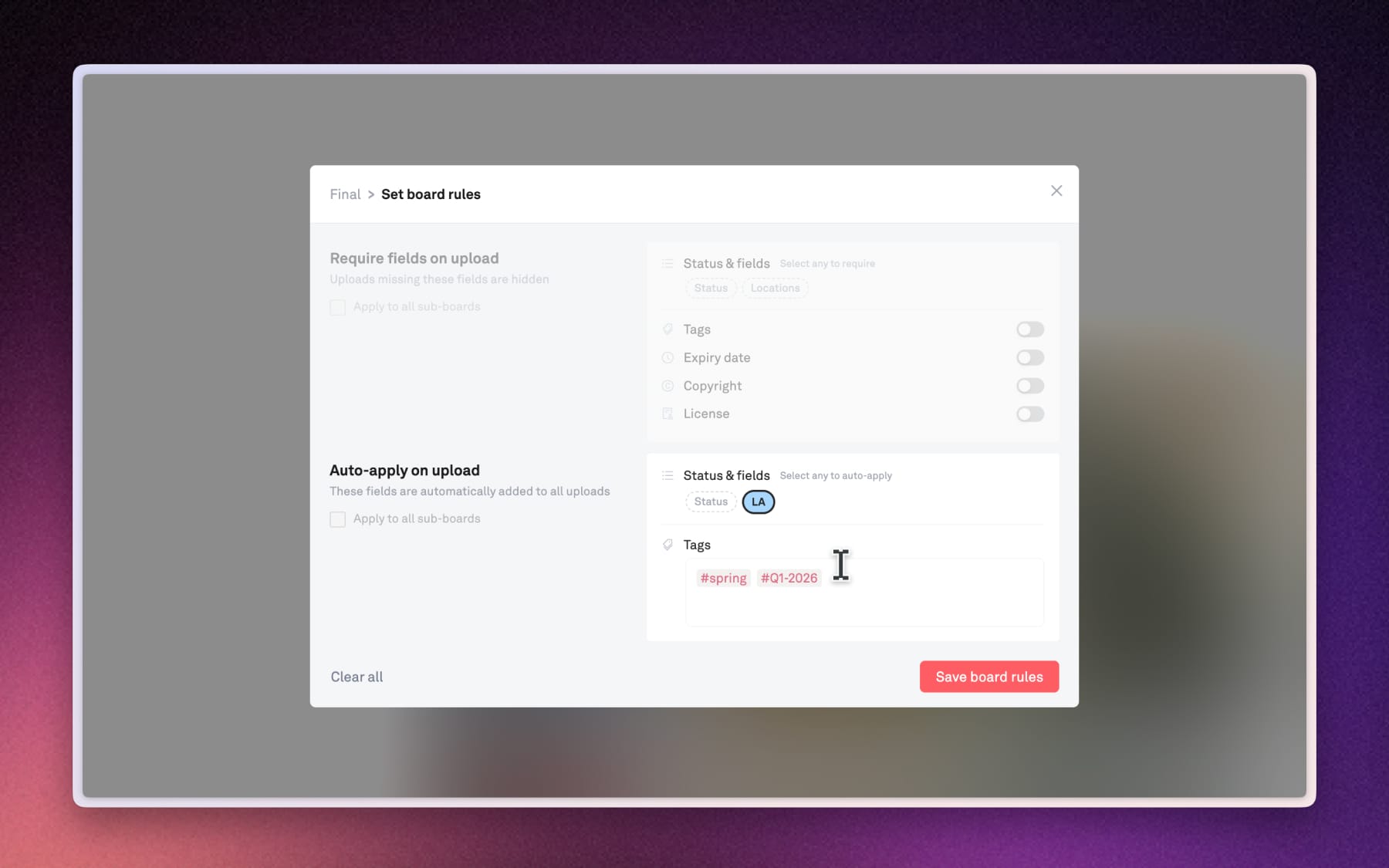
This is the ultimate time-saver. Instead of asking for information, you can pre-select the values you want and Playbook automatically attaches predefined tags and fields to every new file added to the board.
- Status & custom field automation: Automatically set the Status or your own custom fields for every upload.
- Automatic tagging: Add specific #hashtags so file dropped into this board will instantly inherit these tags.
Expected behavior
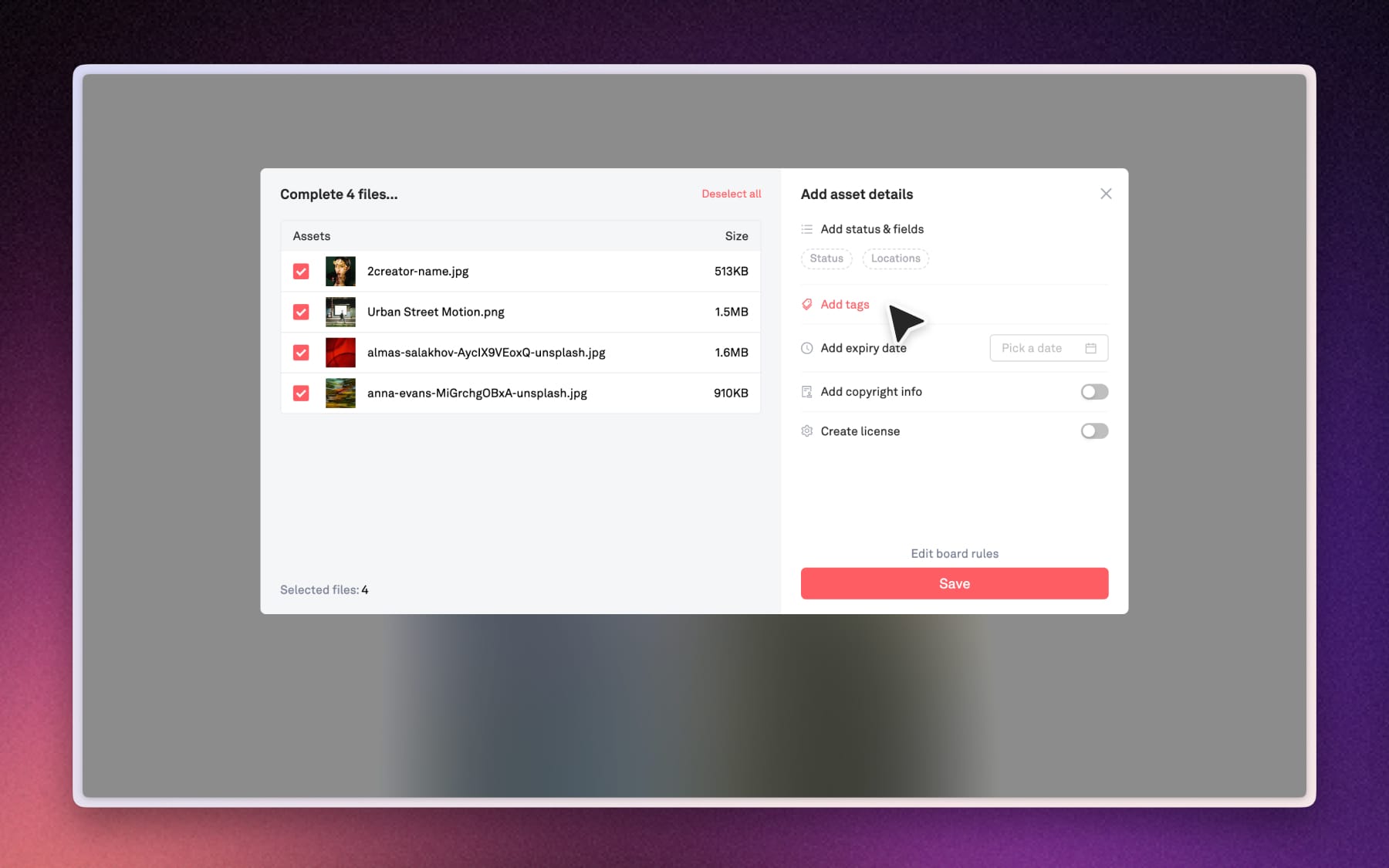
If a file if missing required info, Playbook automatically hides it to keep your board from getting messy.
How to Edit missing info:
Look for the bar at the top of your board and click Edit missing info. This opens a quick view modal where you can add the missing tags or fields to "unlock" the files so they show up for everyone else.