
Collecting files with Dropzone
Learn how to use your unique Drop link to collect files from anyone without requiring them to create an account.
Playbook Dropzone provides a dedicated, customizable page where anyone can securely upload assets directly into your Playbook workspace, without having to access it or creating an account.
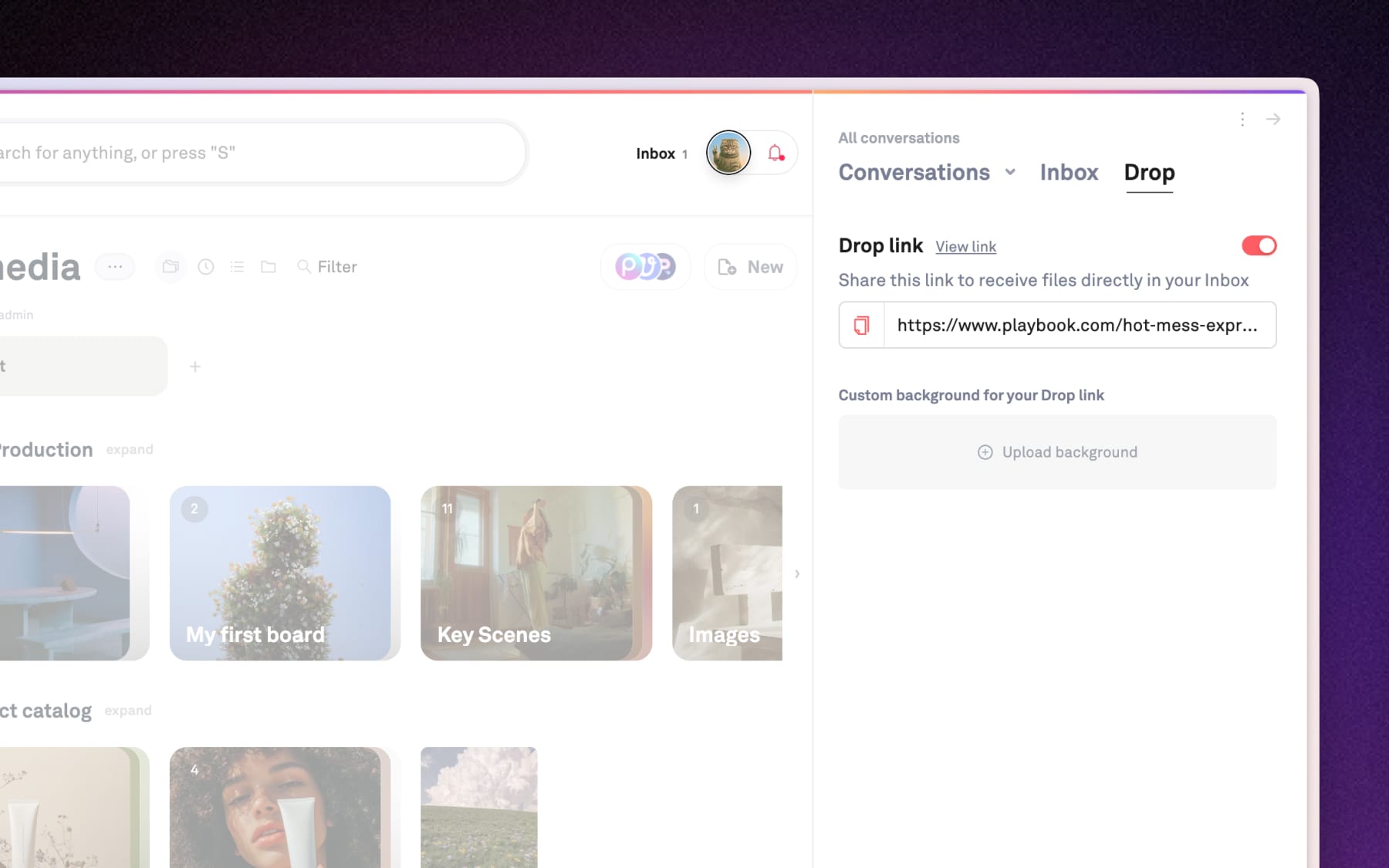
Enable your Drop link in All media
Your Drop link is your personal "inbox" for assets. You can manage it directly from your workspace sidebar in All media.
- Click Inbox at the top right next to your Profile icon → click on Drop tab.
OR, open Conversations in All media → click on Drop tab. - Toggle ON the Drop link to allow incoming uploads.
- Select Upload background to add custom background for the Dropzone.
How to review Inbox boards
Once files are sent, you can see them under Inbox or Conversations in All media.
- Click the Inbox button next to your Profile icon at the top, or navigate to All media → open Conversations panel.
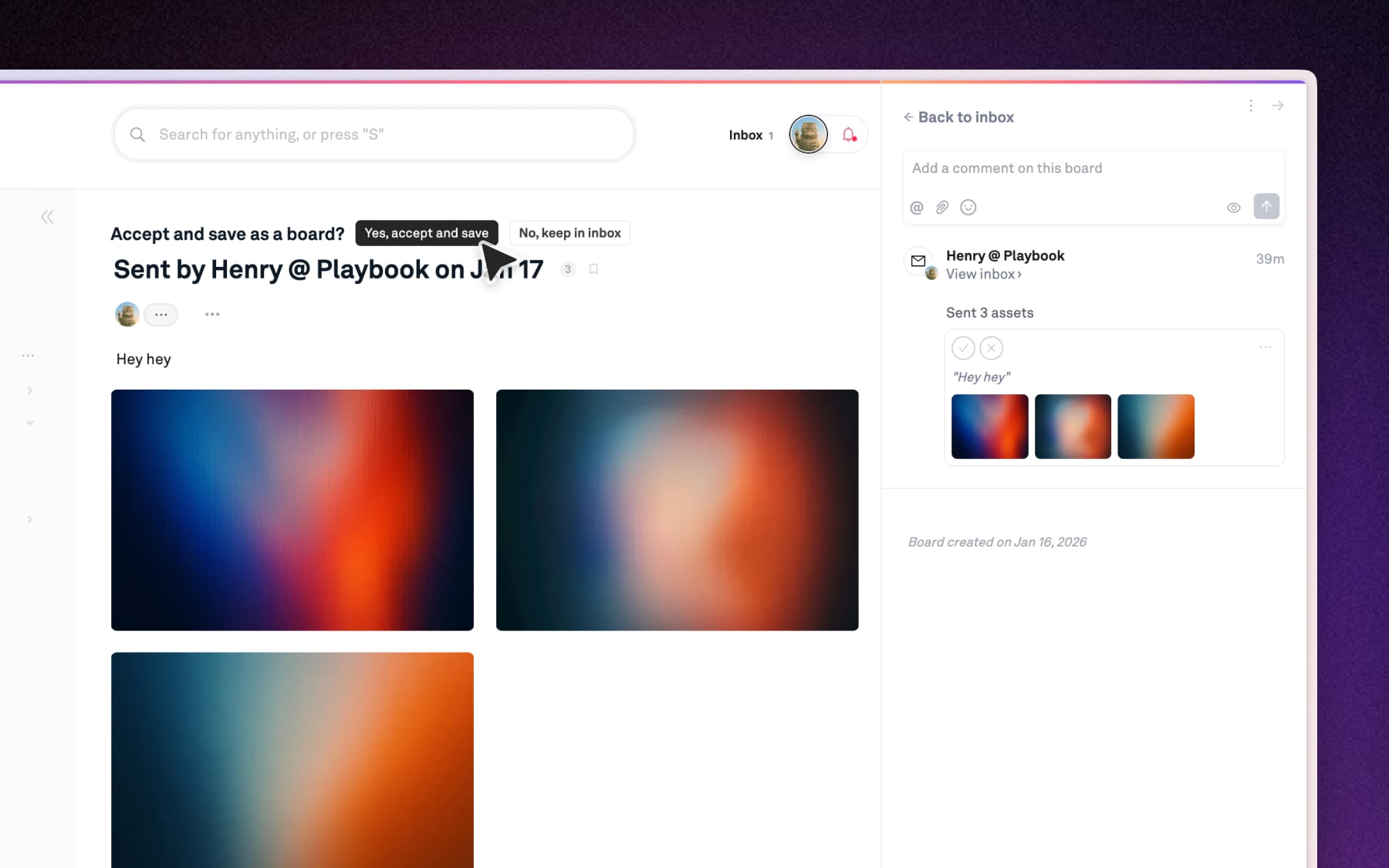
- Click on any transfer within the Inbox list to open it as a temporary board
Opening the board allows you to see the send's name, their message, and high-resolution previews of every asset they uploaded.
How to accept and manage Inbox boards
Once files are sent, you can review and approve them before they enter your permanent library.
- Quick acceptance: If you trust the source, you can click the Checkmark icon directly from the sidebar list to accept the submission as a new board.
- Open & confirm: While you're inside an Inbox board, use the buttons appear in the header to accept or ignore and keep it in Inbox.
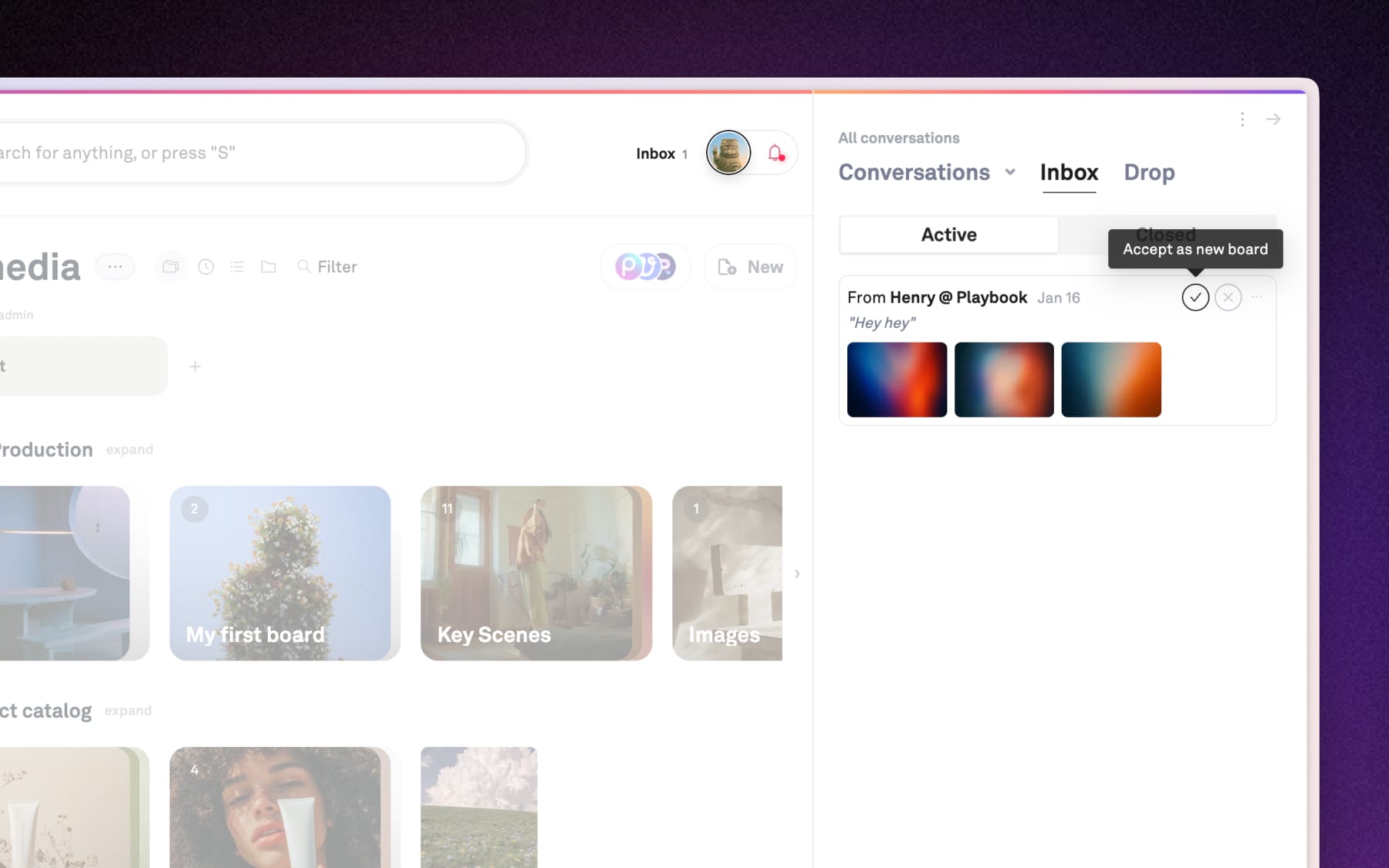
Rejecting board
When you click the "X" on an incoming board or select the button "No, keep in inbox", Playbook automatically moves that board to the Closed tab. This ensure your Active inbox remains focuses only on the new incomings.