
Comments & timestamps
Learn how to leave comment on images, videos and attach reference images to comments.
In Playbook, feedback happens exactly where the work is. By using Comments and Reactions, you can provide clear, actionable feedback directly in your assets, ensuring your team and clients are always on the same page.
How to leave comments on assets
Whether you're reviewing a still image or a 60-second video, you can leave precise feedback that your team can immediately understand.
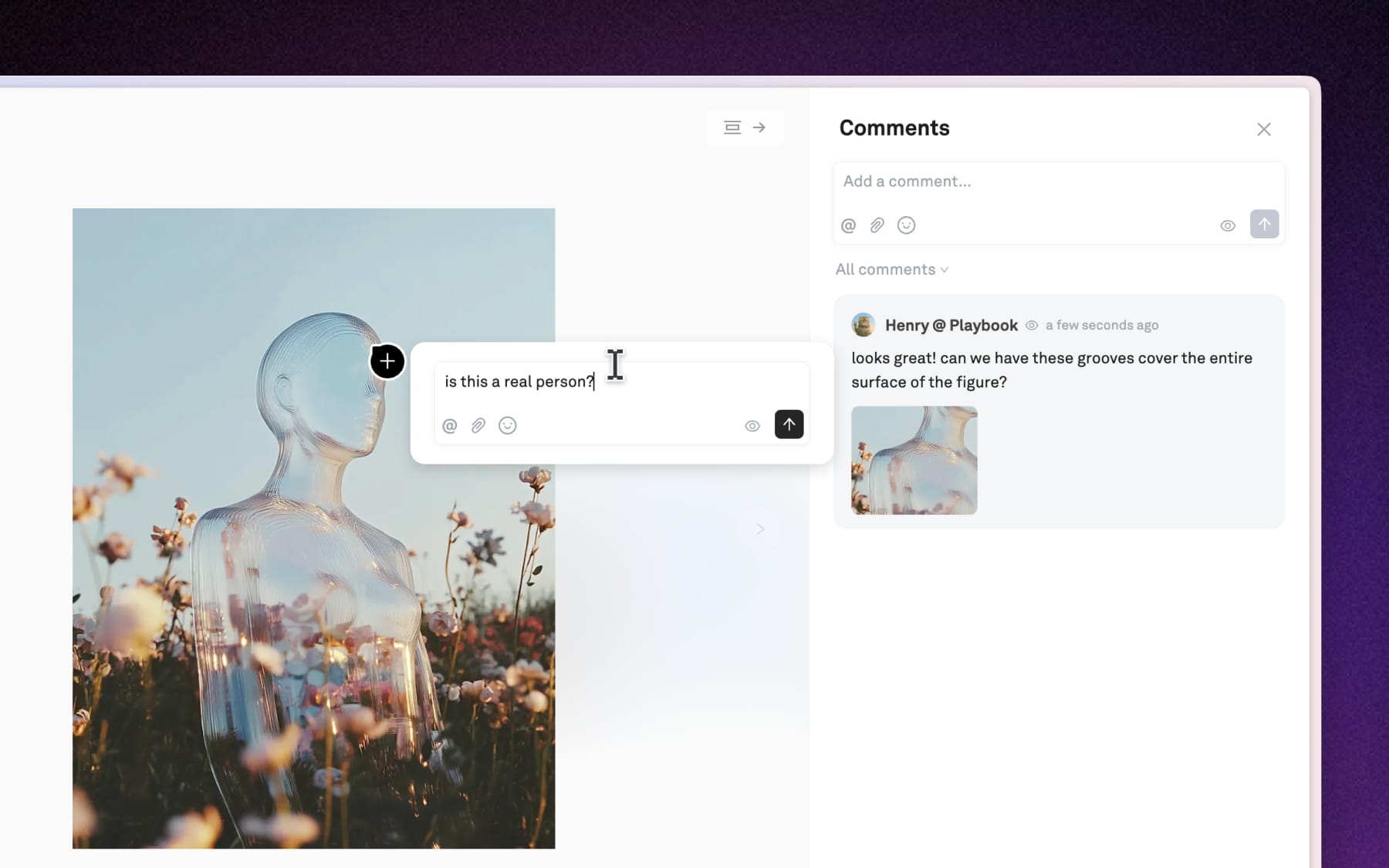
Commenting on images and files:
- Open the asset: Click on any file to enter the full-screen details view
- Enter comment view: On the right-hand side, click the Add a comment... button
- Add comment: Enter your feedback and press Enter. To add anchored comment, hover over the images and click to add comment.
- Attach images: If you have a visual preference to share, drag and drop images or GIFs directly into the comment box.
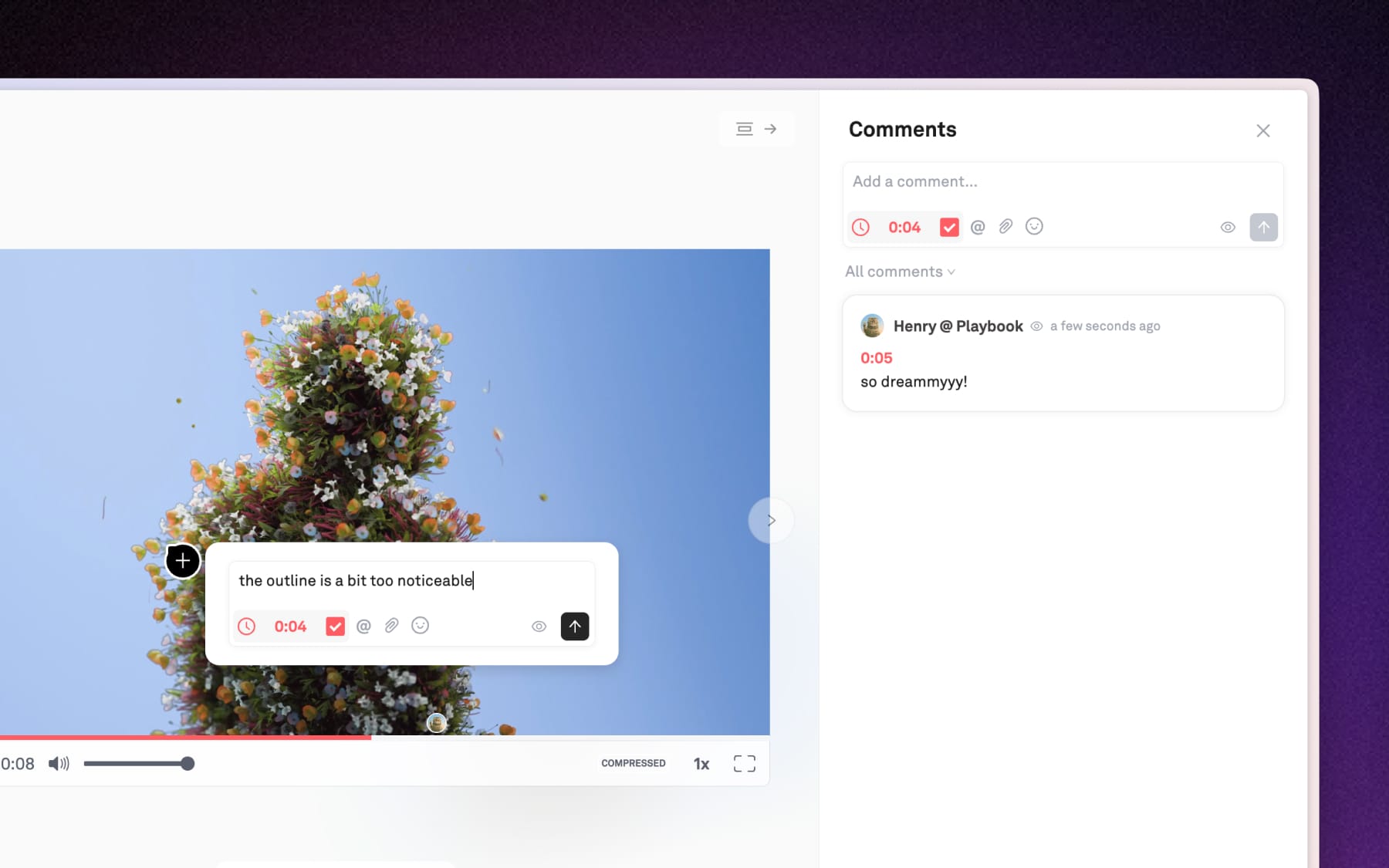
Timestamped video comments:
- Play the video: Open a video asset and hit Play
- Comment at a specific moment: When you see something that needs a change, click Add a comment on the right-hand panel and start typing.
- Auto-timestamp: Playbook automatically attaches the exact time to your comment. You can unselect it to not include timestamp.
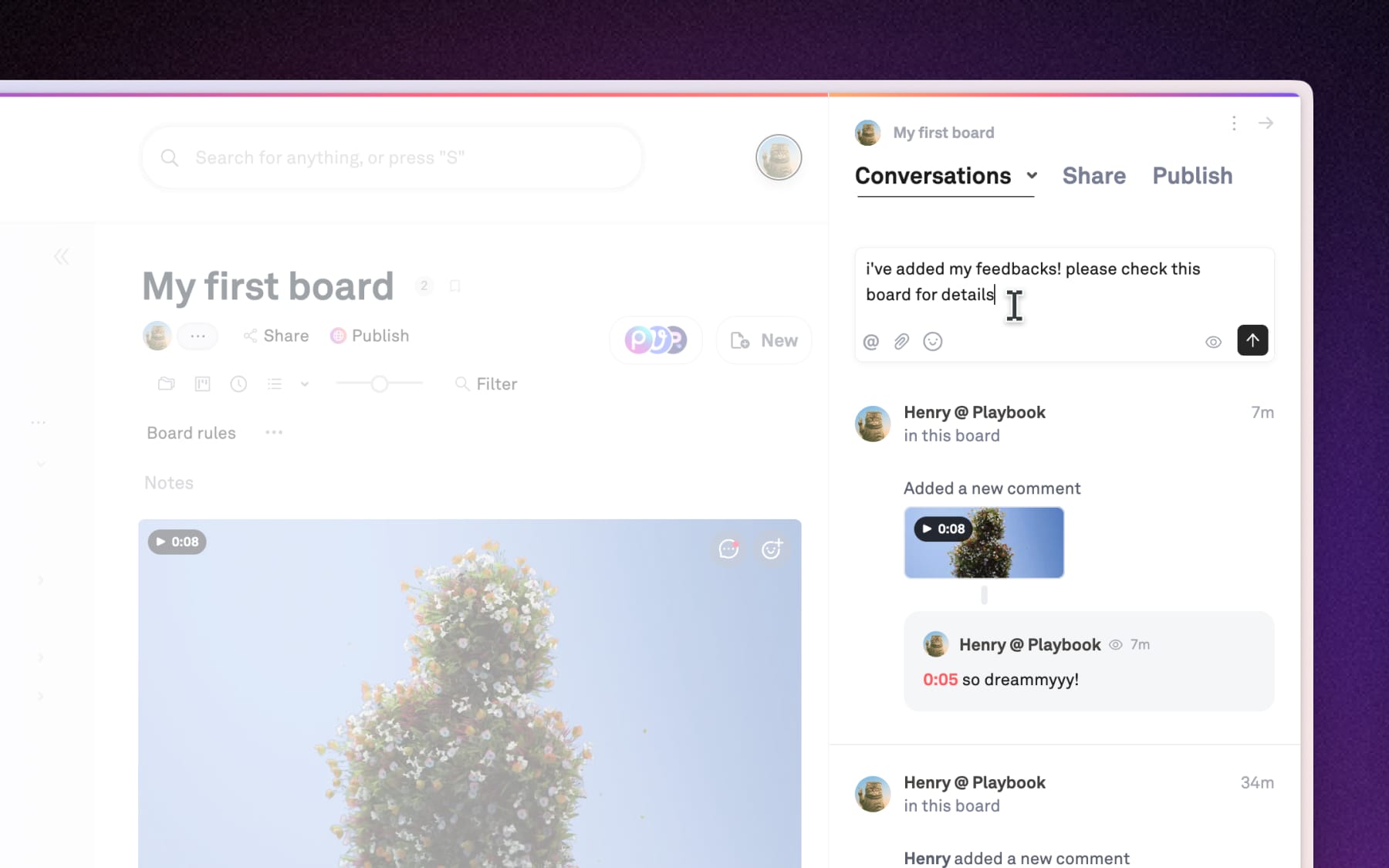
How to add board-level comments with Conversations
Sometimes feedback isn't about a single file, but the project as a whole. Open Conversations to add comments to the entire board for high-level discussions.
- How it works: Navigate to any board → open Conversations by click the avatars at the top of your board → type comment and hit Enter.
- The benefits: Comments left here apply to the entire board rather than an individual asset, making it the perfect place for project briefs, general check-ins.
@Mentions and resolving comments
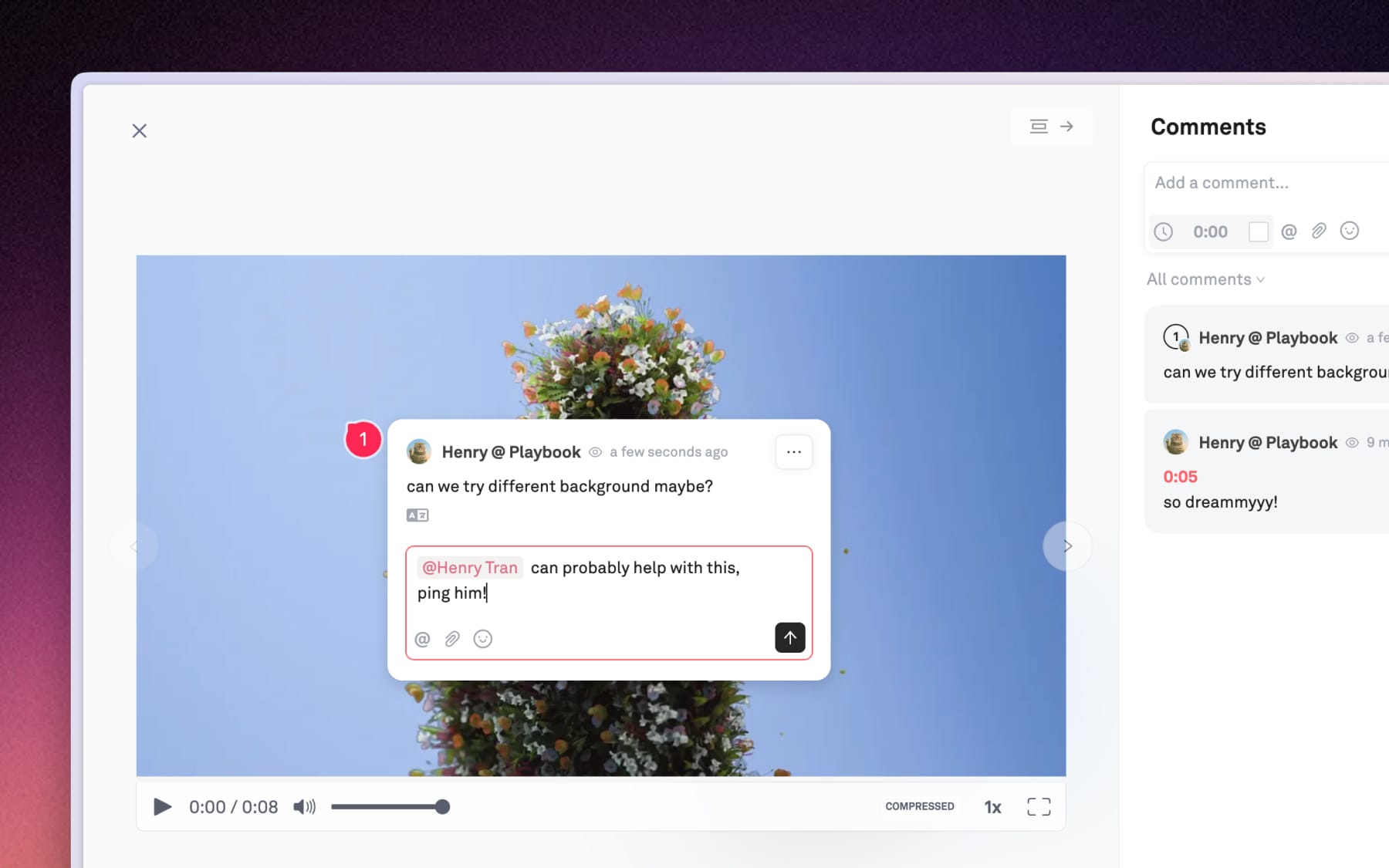
Keep the feedback loop organized by directing your comment to specific people and use Resolve to clear out old comments.
Using @Mentions
To make sure a specific teammate sees and gets notified about your comment, type @ followed by their name.
Resolving comments
Once the feedback has been address, click the Resolve (checkmark) icon next to the comment.
Feedback for Everyone (No account needed)
One of Playbook's most powerful features is how easily it gathers external feedback with a simple link.
- Public visitors: When you share a board via a link, anyone with that link just have to enter Name and start leaving comments or emoji reactions.