How to create & use boards
Learn how boards and sub-boards work in Playbook and how to create one and start organizing.
Instead of folders, a board is the main place where your assets live in Playbook. It holds sub-boards, images, videos, documents and design files together with instant previews, so you can discover your assets at a glance.
Create your first board
Creating a board in Playbook is simple and there're a few ways to do it:
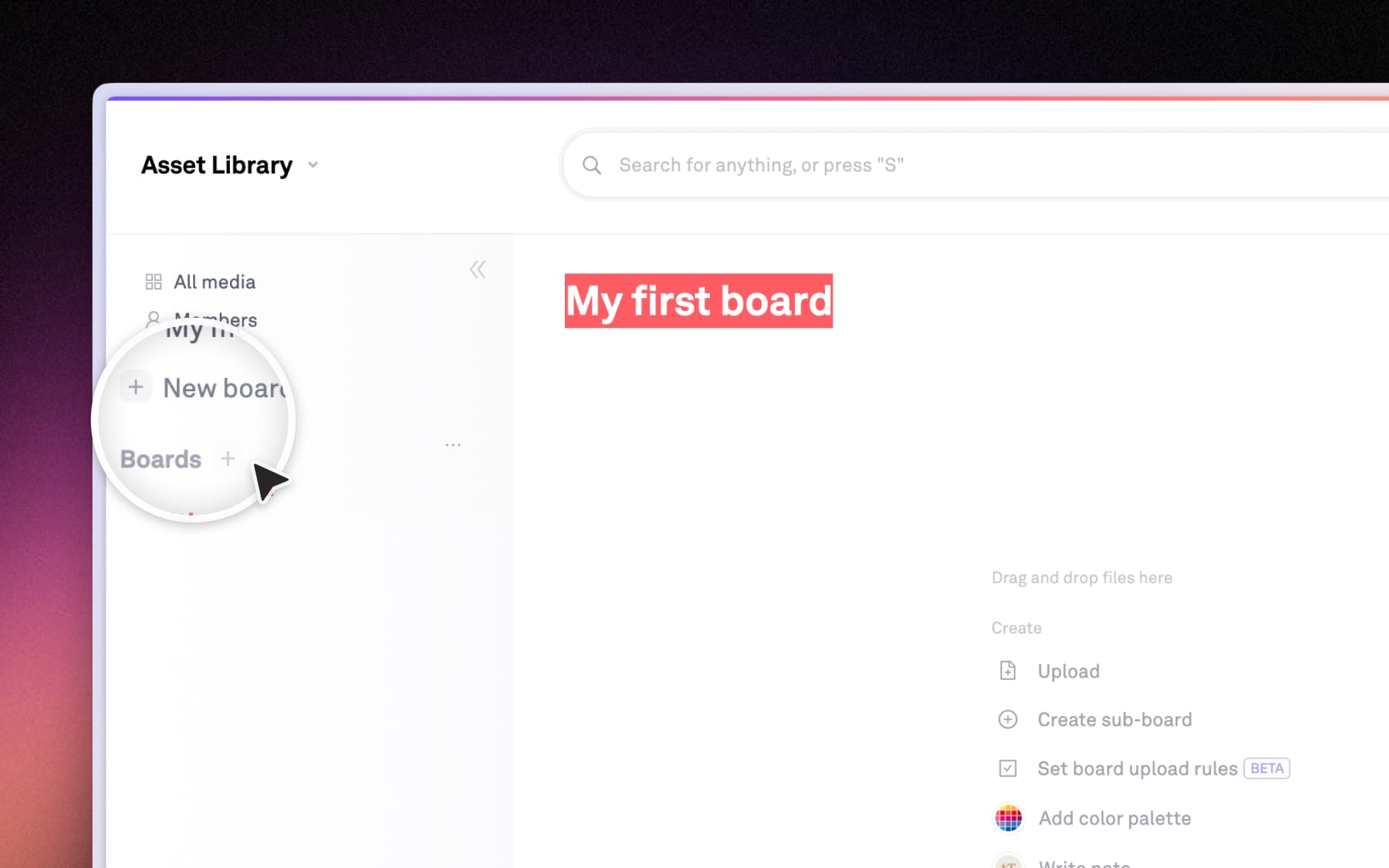
- From the left sidebar, select (+) New board or the (+) next to Boards.
- In All media, select (+) New → Board from the dropdown menu.
Give the board a name that describes the purpose, you can change it anytime by clicking on the title again at the top of your board.
Add a sub-board
You can create board within board in Playbook to keep assets organized as projects grow. There're also multiple ways to add sub-boards:
- Open a board and select (+ New) → Sub-board
- Right-click anywhere inside a board and select Add sub-board
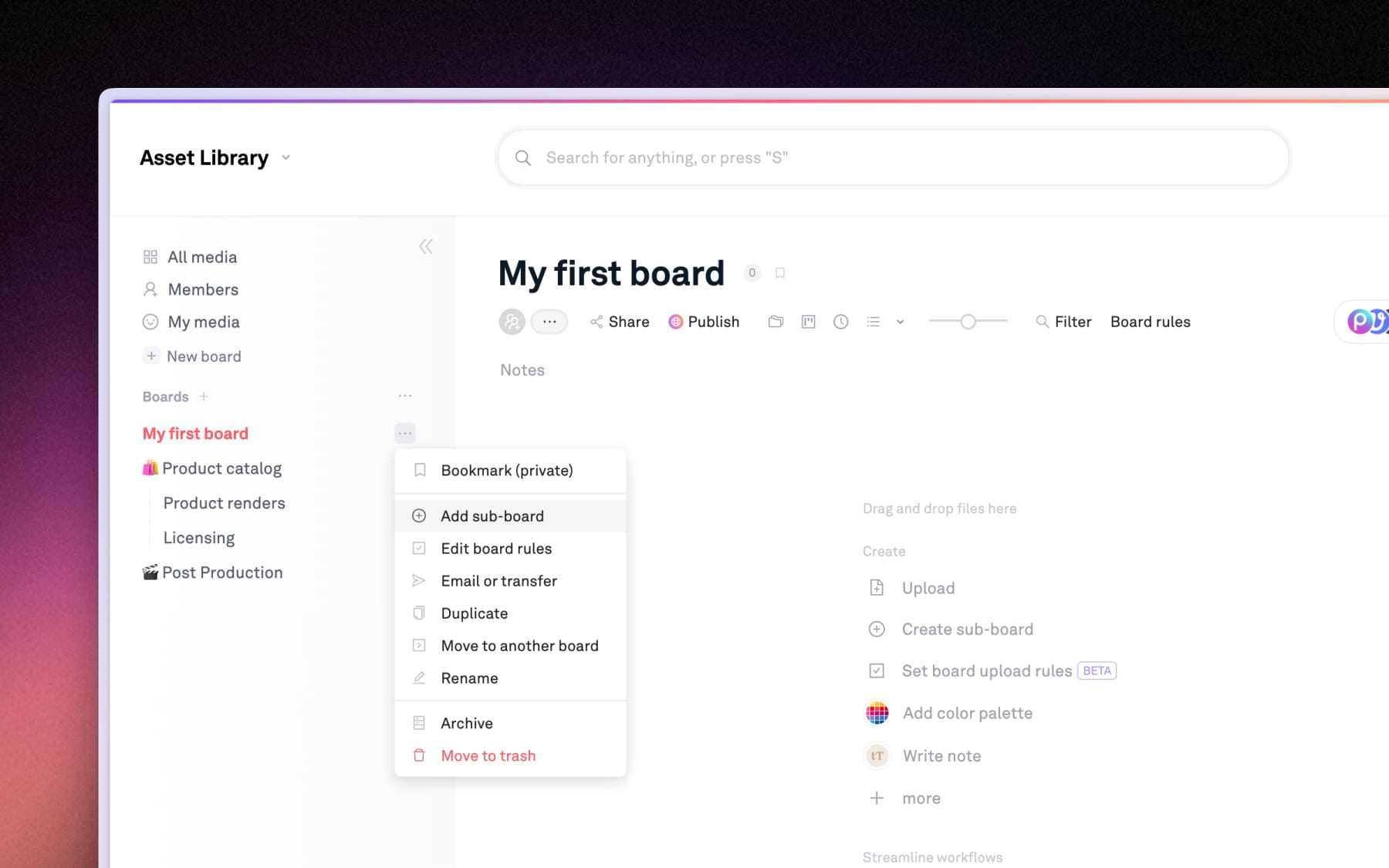
- From the left sidebar, hover over any board name and click ••• → Add sub-board
Rearrange board structure
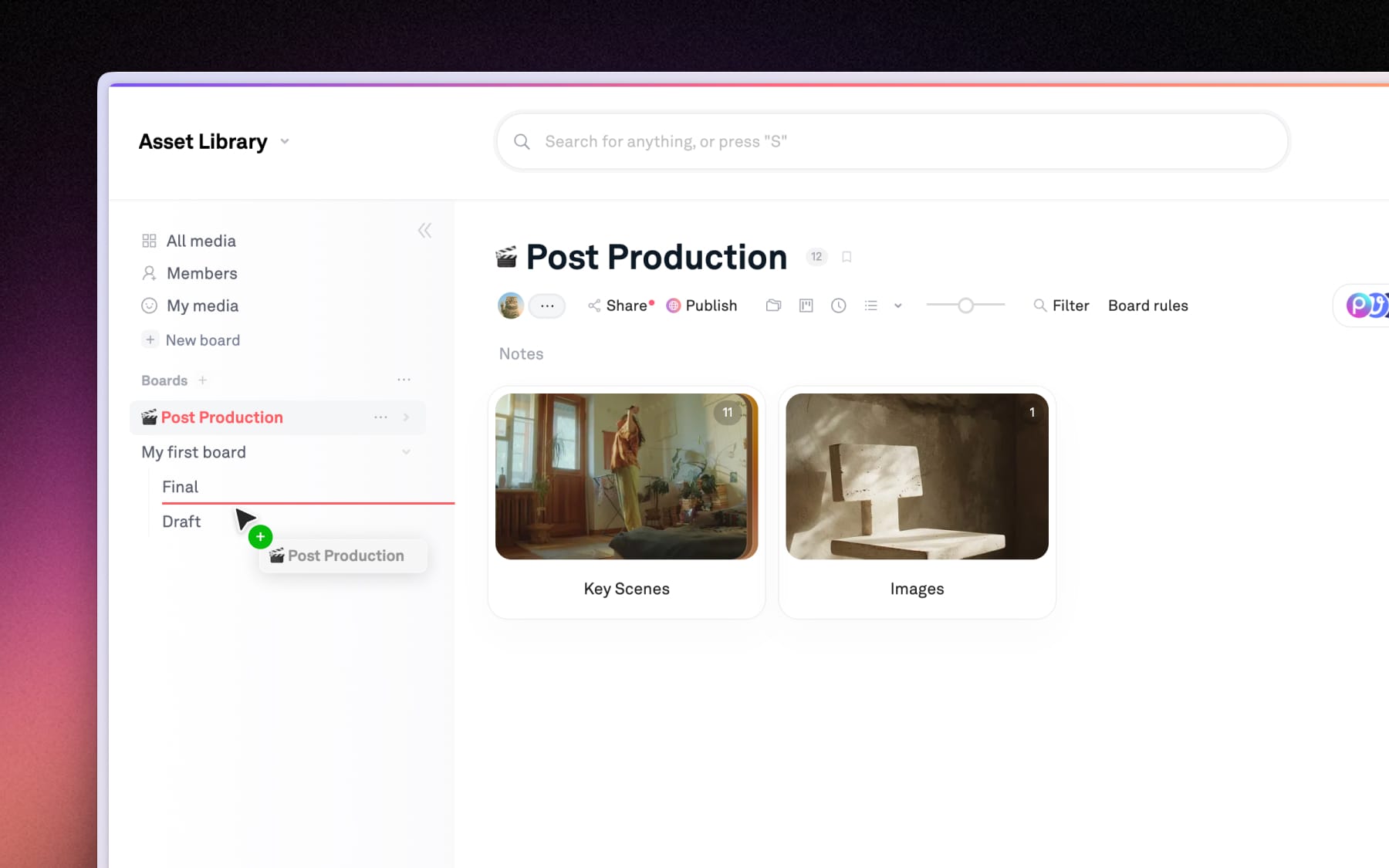
You can easily drag to reorganize your board structure:
- To make a board a sub-board, select a board in the left sidebar and drag in into another board.
- To move a sub-board out of its parent board, select the sub-board and drag it outside of the parent board.
Note: When you share a parent board, all of its sub-boards are included in that shared link. But sharing a sub-board does not include the parent board or sibling boards.