Custom fields & status
Learn how to use Playbook's "Status" field and create your own Custom fields.
In Playbook, your file is part of a living workflow. By using Custom fields, you can attach specific data to your assets–like photographer names, product types, locations or any internal projects IDs.
Combined with the default Status field, these statues allow you to track progress of every asset from "Draft" to "Approved."
The Status field (default)
Every asset comes equipped with a ready to use Status field, allowing you to track and communicate internally where an assets sits in your creative pipeline.
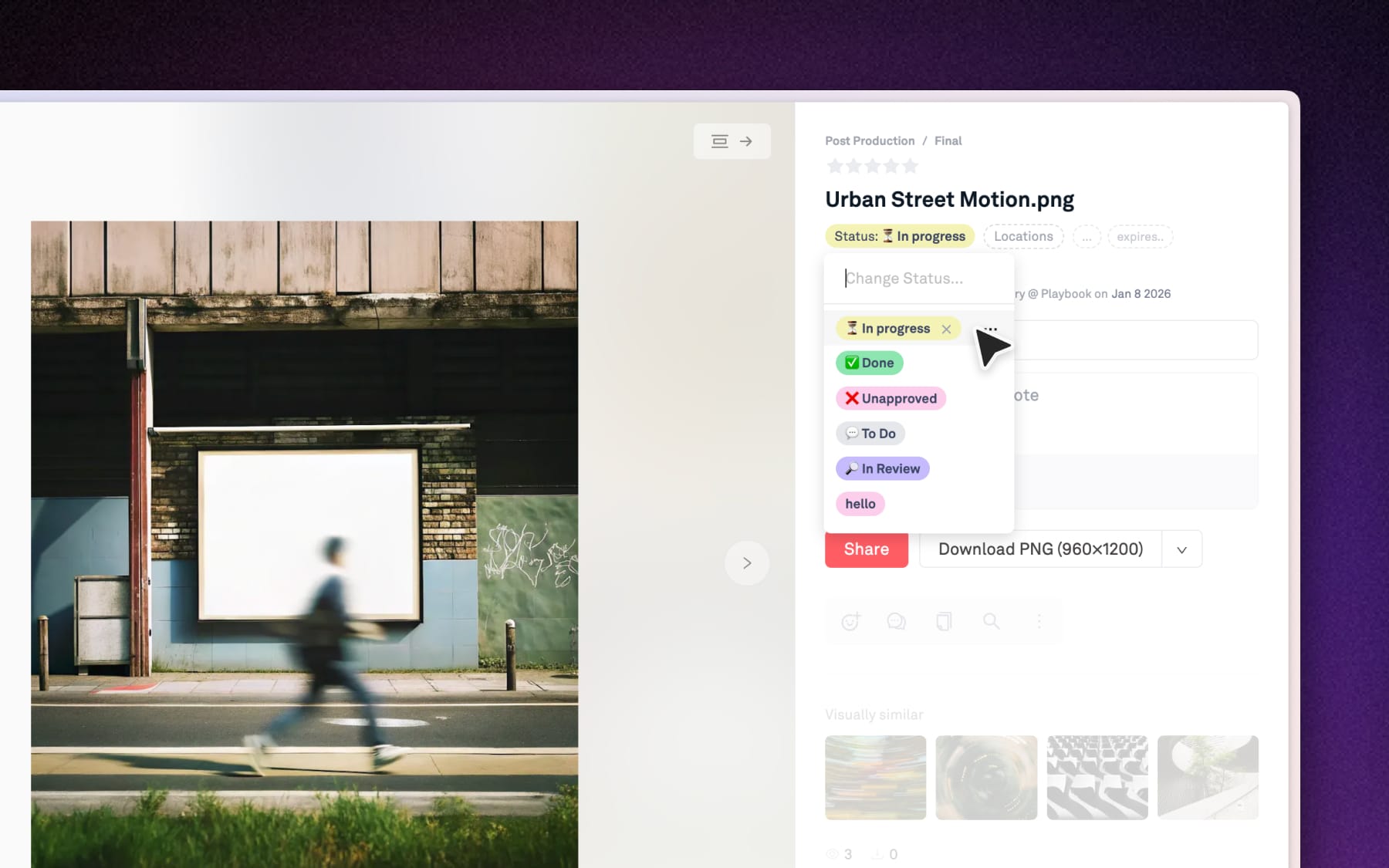
Step 1: Assigning a Status
Click any asset to open the Info panel on the right. Look for the Status pill and choose a status from the dropdown to apply.
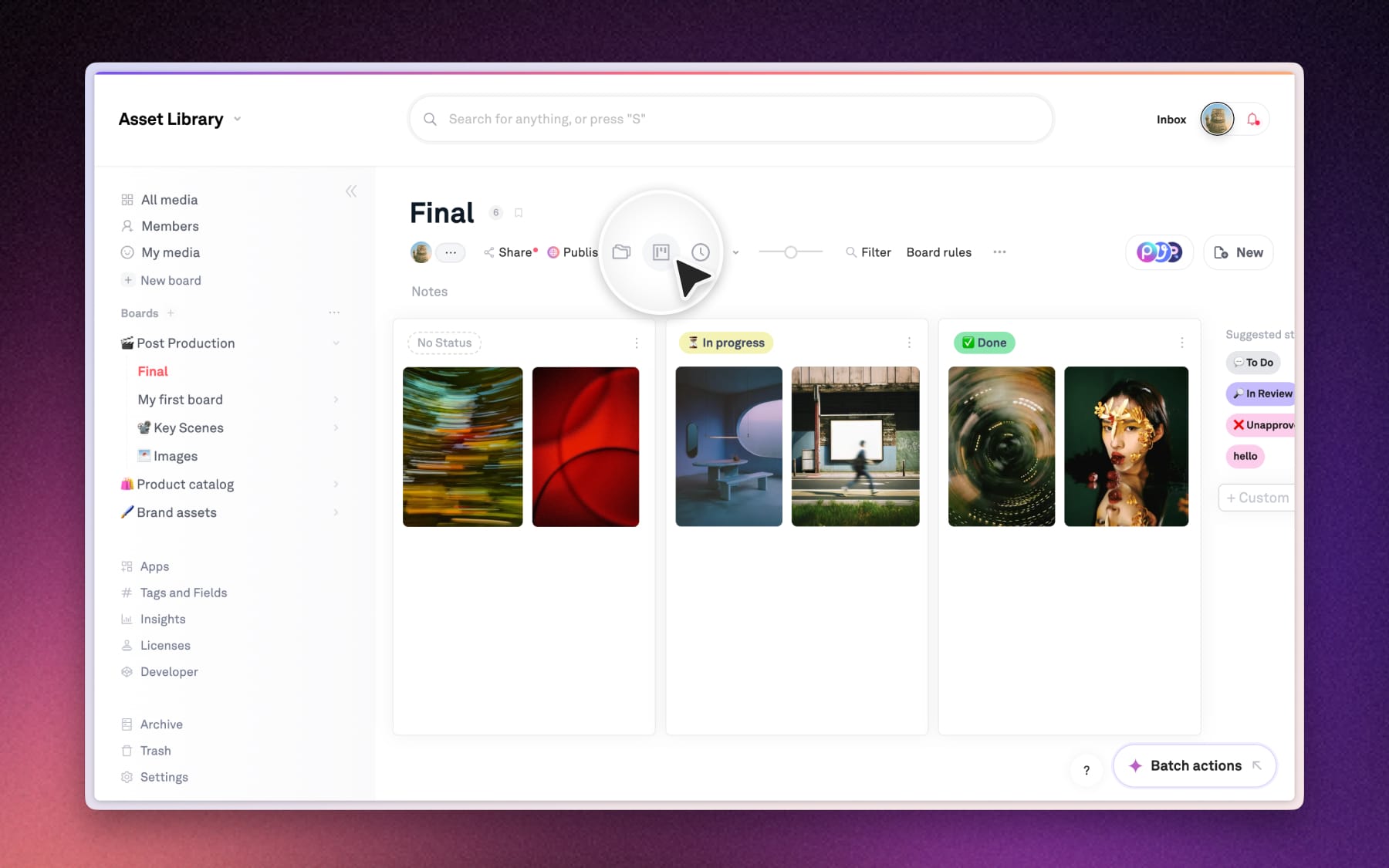
Step 2: Switching to Kanban view
To see your workflow in action, switch your board view to Kanban view. Your assets will automatically sort into columns based on their their statuses.
Adding your own Custom fields
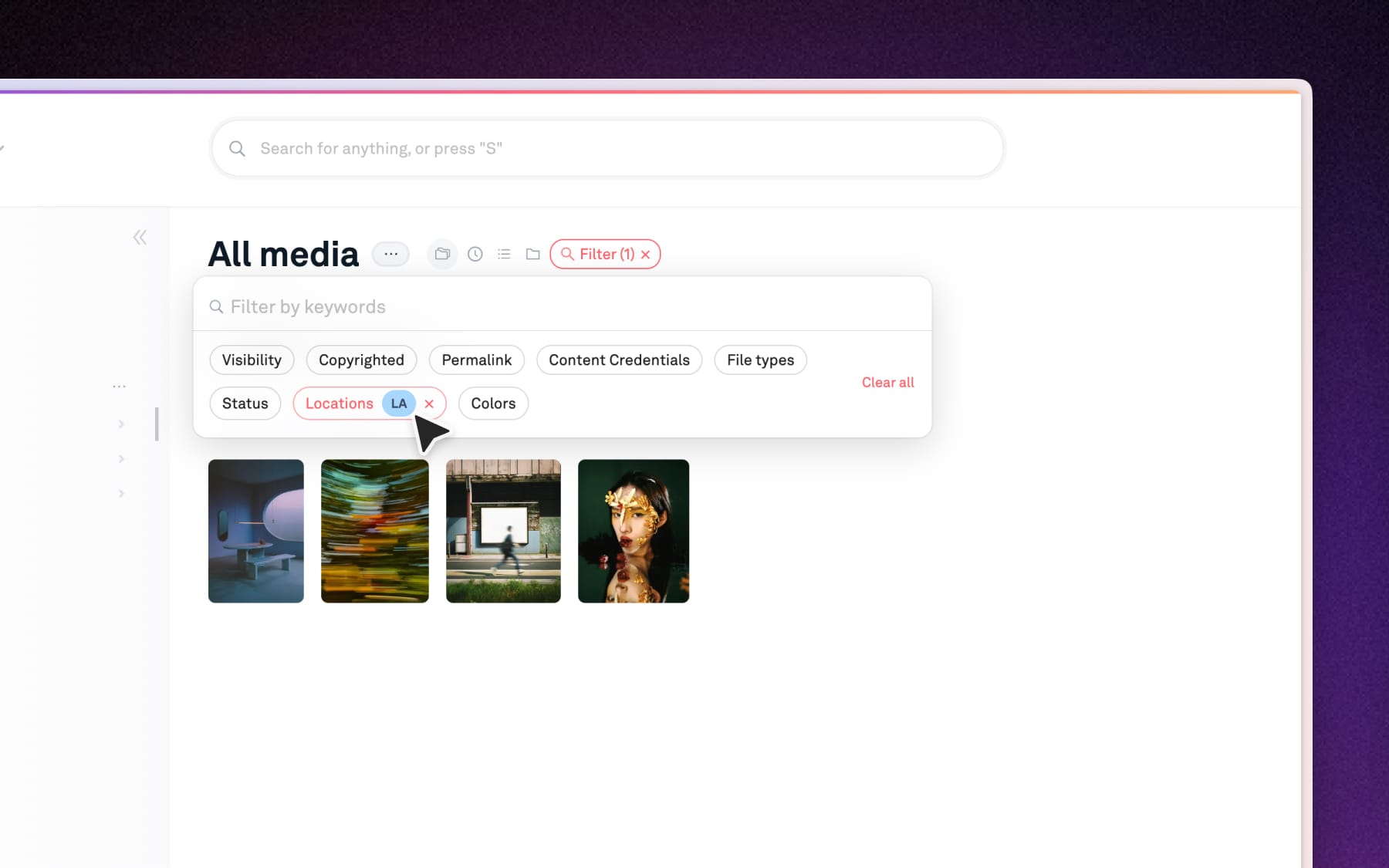
Track specific details that matter to your business and team. Once added, these fields become searchable and filterable.
Step 1: Open Tags and Fields
From the left sidebar, navigate to the Tags and Fields page. Click on the Custom fields tab to begin.
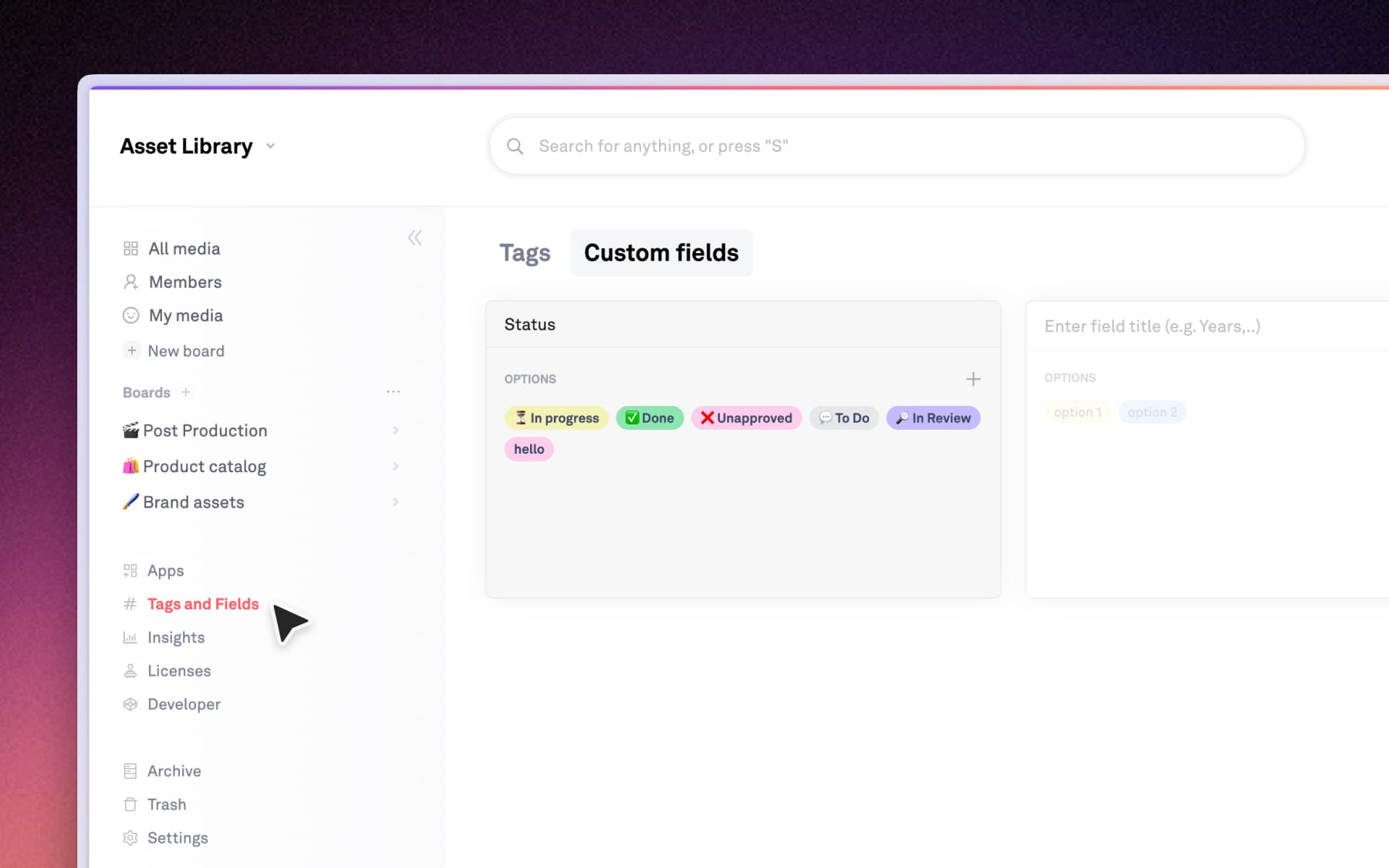
Step 2: Define your field and options
Creating a new field is a two-step process within this tab:
- Title new field: Enter the title of your new field (e.g., Locations, Years) in the provided input.
- Add options: Select Option 1 or Option 2 to edit the name or click the (+) icon to add more choices (options) → click Save.
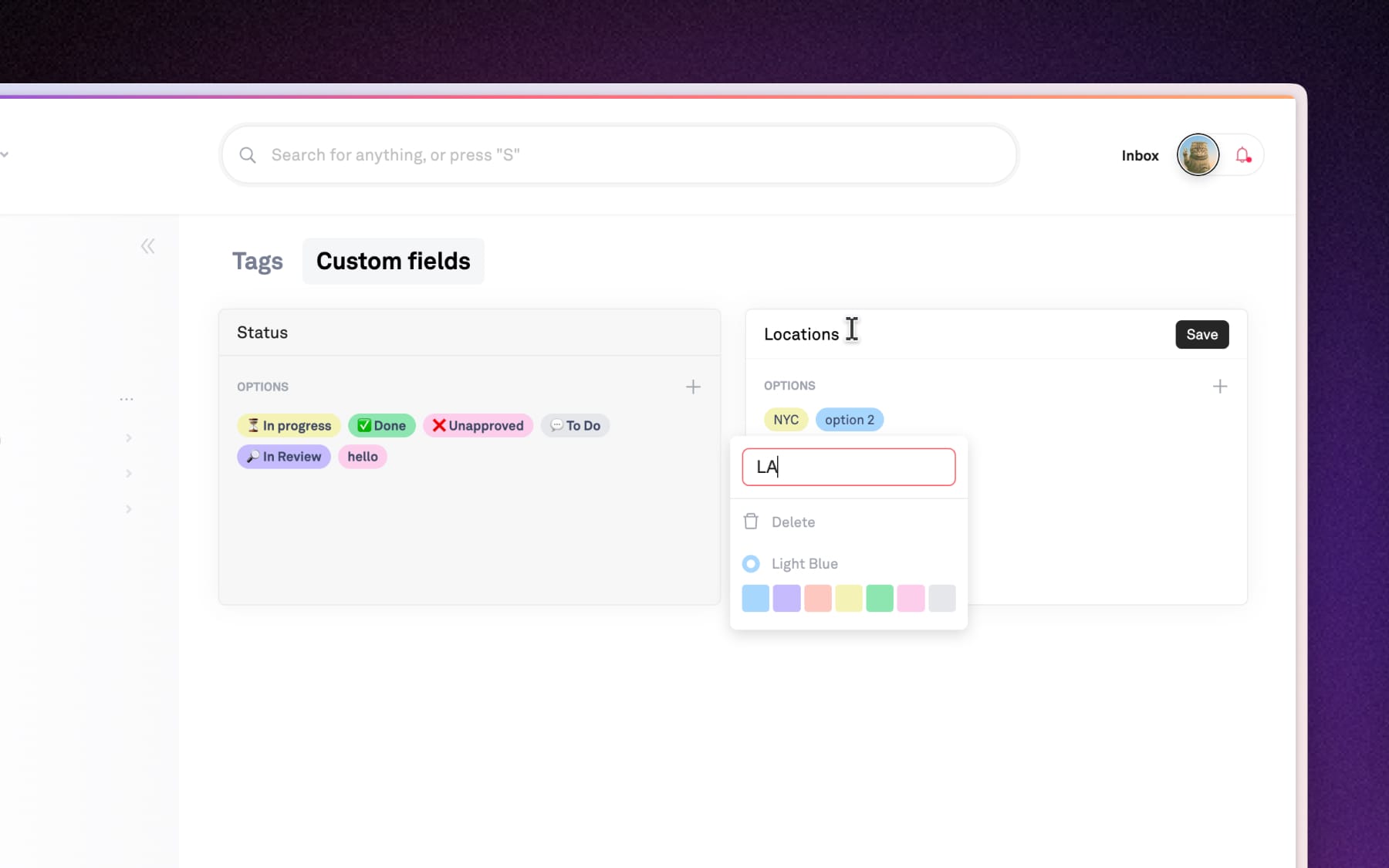
Step 3: Apply to assets
Click on any assets to open the Info panel, you should now see your new custom field next to the default Status.
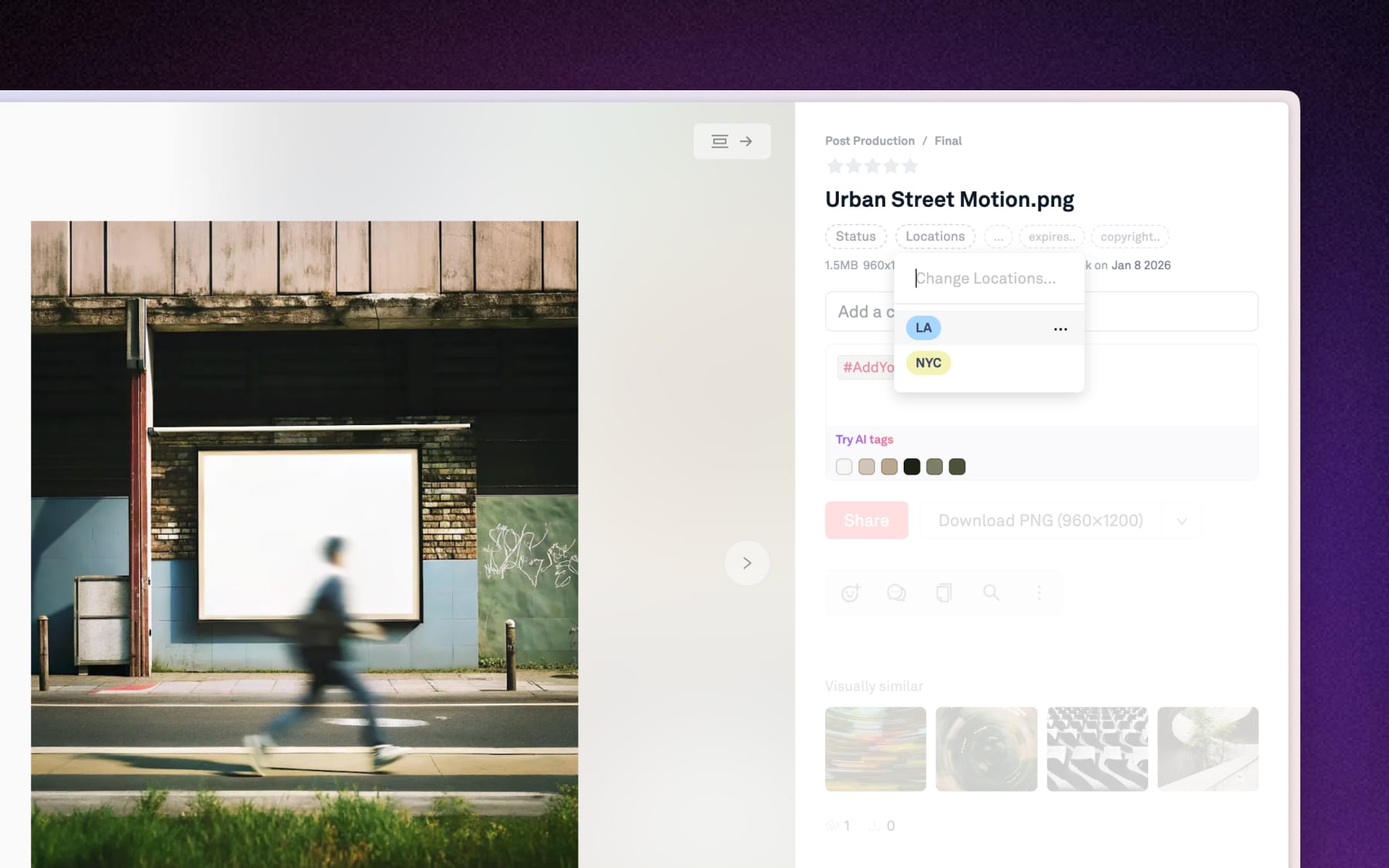
Filtering by your fields
The true power of Custom fields is the ability to find and filter for exactly what you need, especially in a library of thousands.
Filter in board: Click 'Filter' at the top of your board → select Field to apply filter.
Filter in All media: You can also filter for your fields across the entire workspace.