
How to import
Learn how to import files from other sources into Playbook, and how imported files behave once they're in a board.
If your files already live in Google Drive, Dropbox, or OneDrive, you don't need to manually download everything and re-upload it to Playbook. You can import files directly into a board so they're immediately visible, organized, and ready to work with.
Step 1: Decide where assets should go
Start by opening the board where you want to imported files to live. If you don't have a board yet, you can also start import from All media page. Playbook will automatically create a new board for it.
Step 2: Connect your account to Playbook
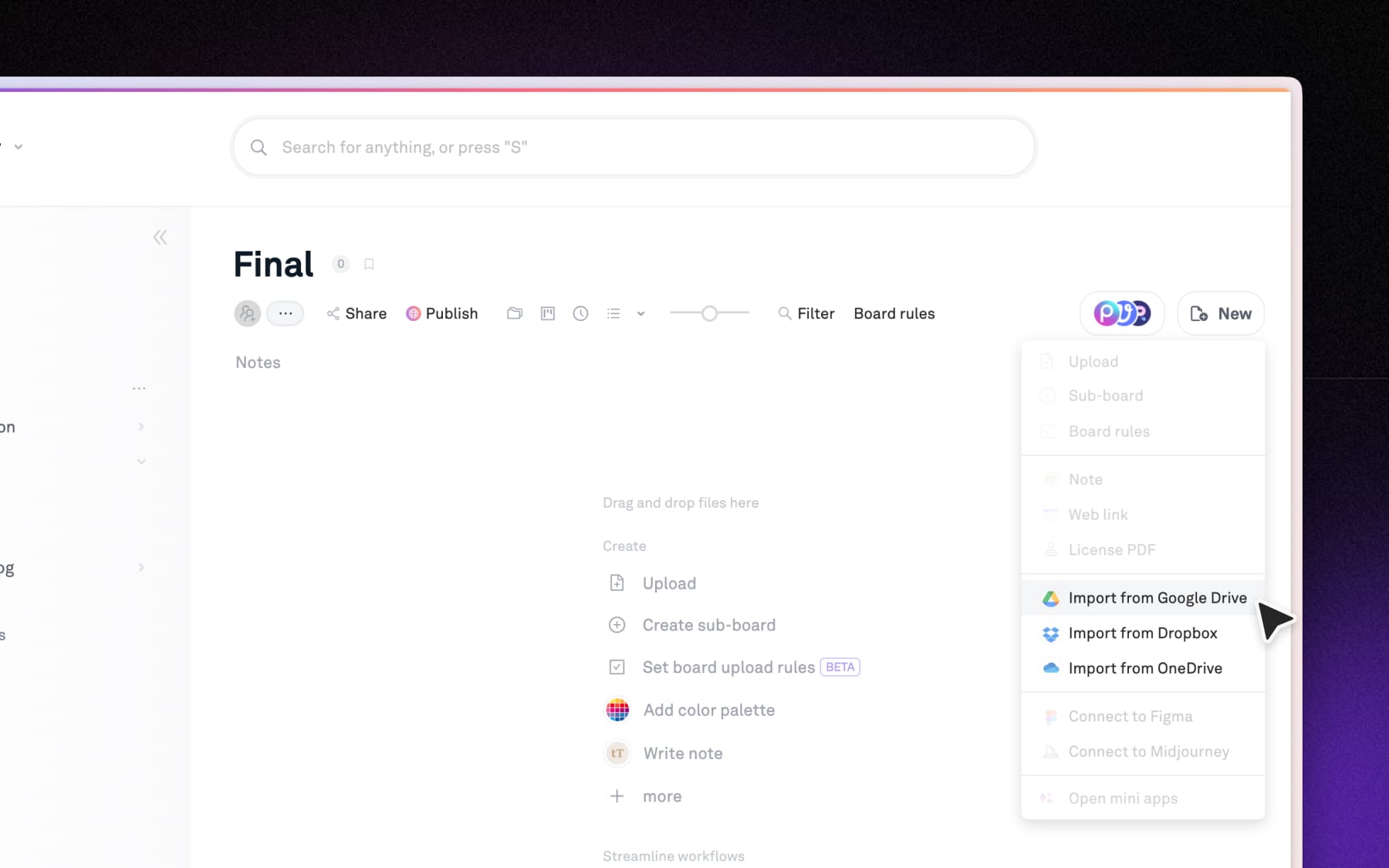
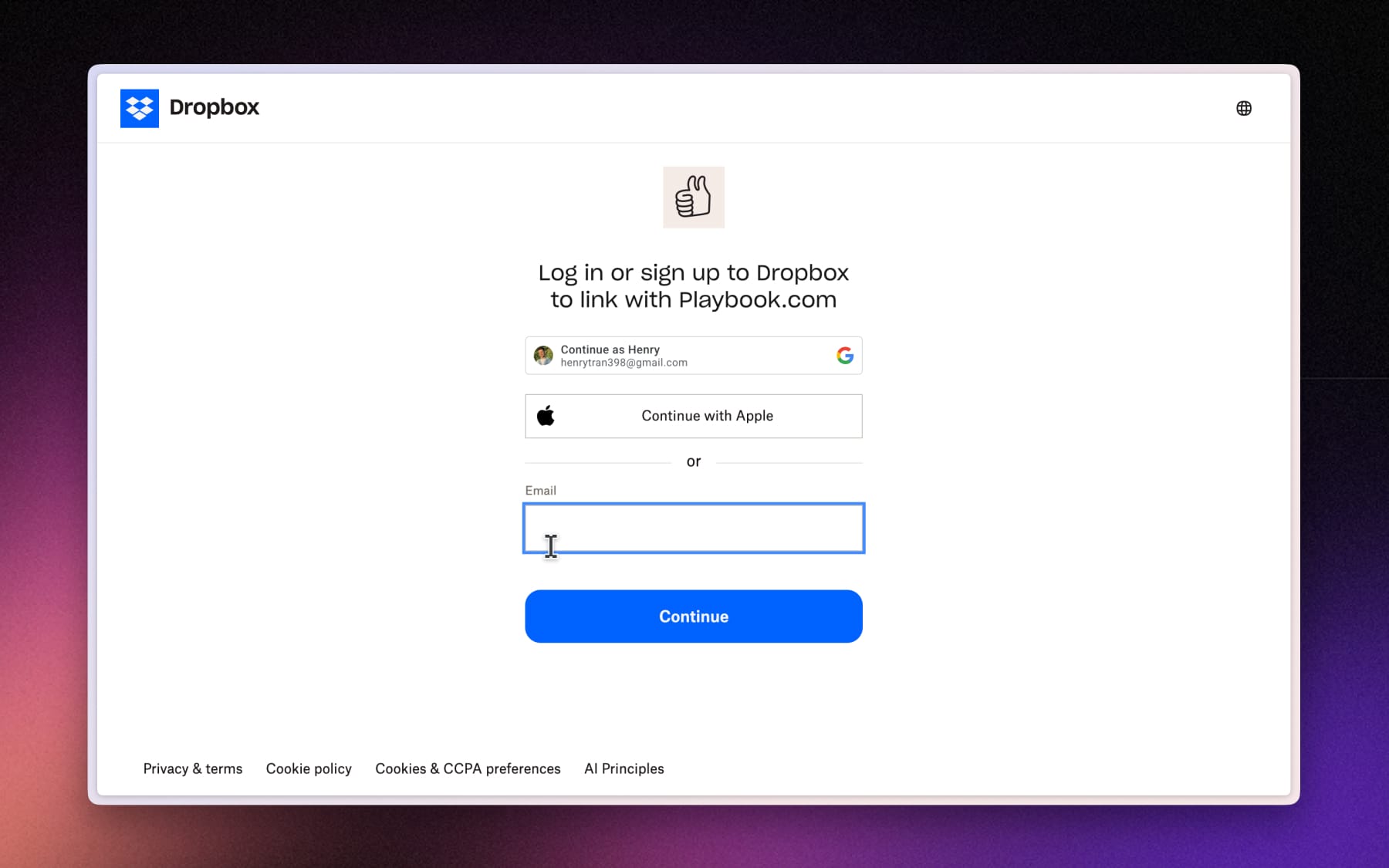
Click (+ New) and choose which source to import from, you'll be asked to sign in and grant Playbook permission to access your files to start importing.
Step 3: Select what to import
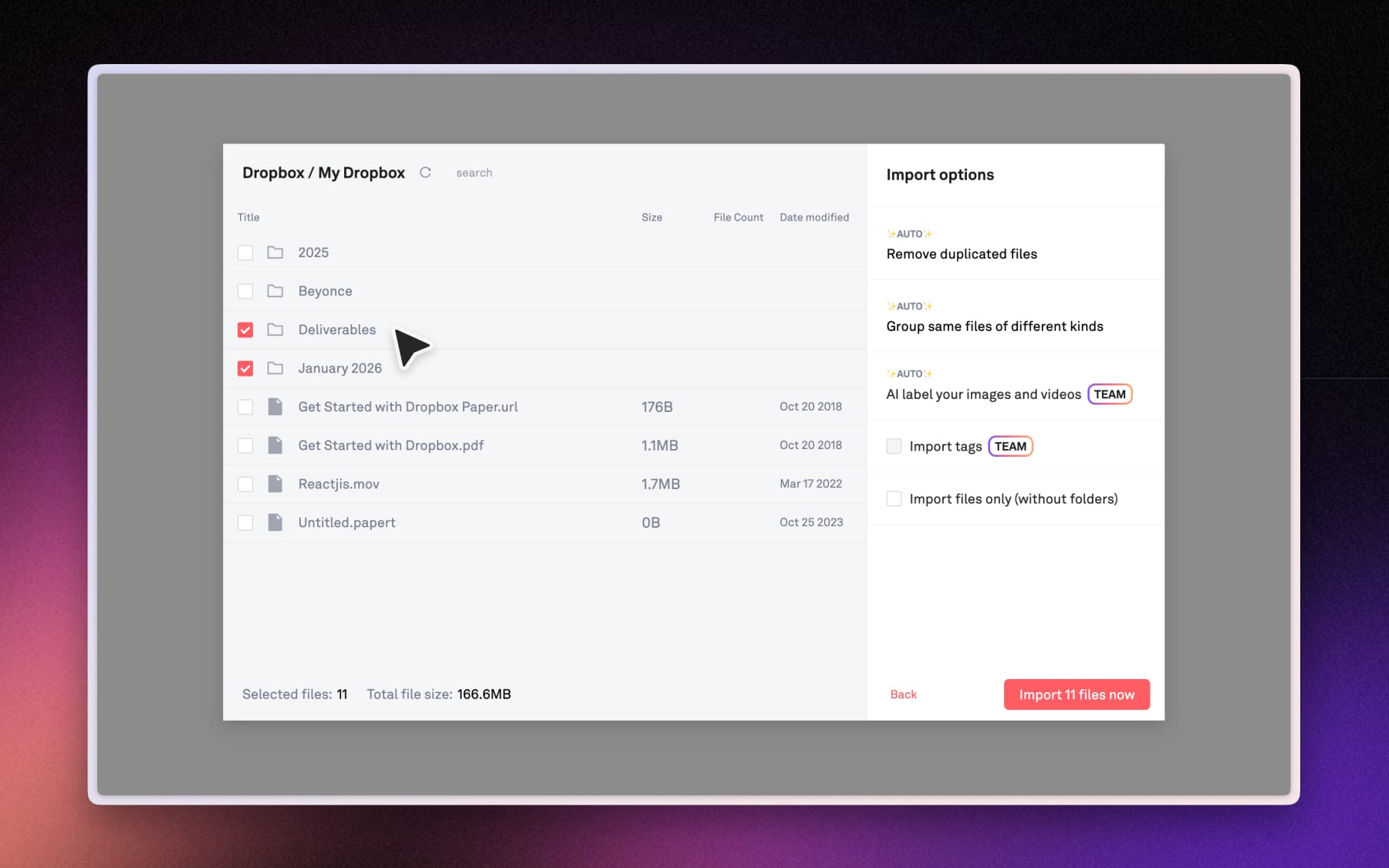
Choose the files or folder you want to bring into Playbook. You can:
- import individual files
- import folders
- import multiple folders at once
When you import folders, Playbook preserves the folder structure by creating sub-boards that match it. This helps existing structure instantly recognizable for you.
After assets are successfully imported
Imported files are copied into Playbook, not moved. Your originals stay exactly where they are in Google Drive, Dropbox, or OneDrive.
Once assets finish importing:
- they can be opened, viewed, and shared immediately
- you can reorganize boards and sub-boards
- changes made in the original source won't affect the imported assets in Playbook.