
How to upload
Here're different ways to upload files or folders into a board in Playbook.
Add files to a board by dragging them in, uploading folders from computer to reserve your existing organization, or import libraries directly from Google Drive, Dropbox, or OneDrive so you don't have to re-download everything.
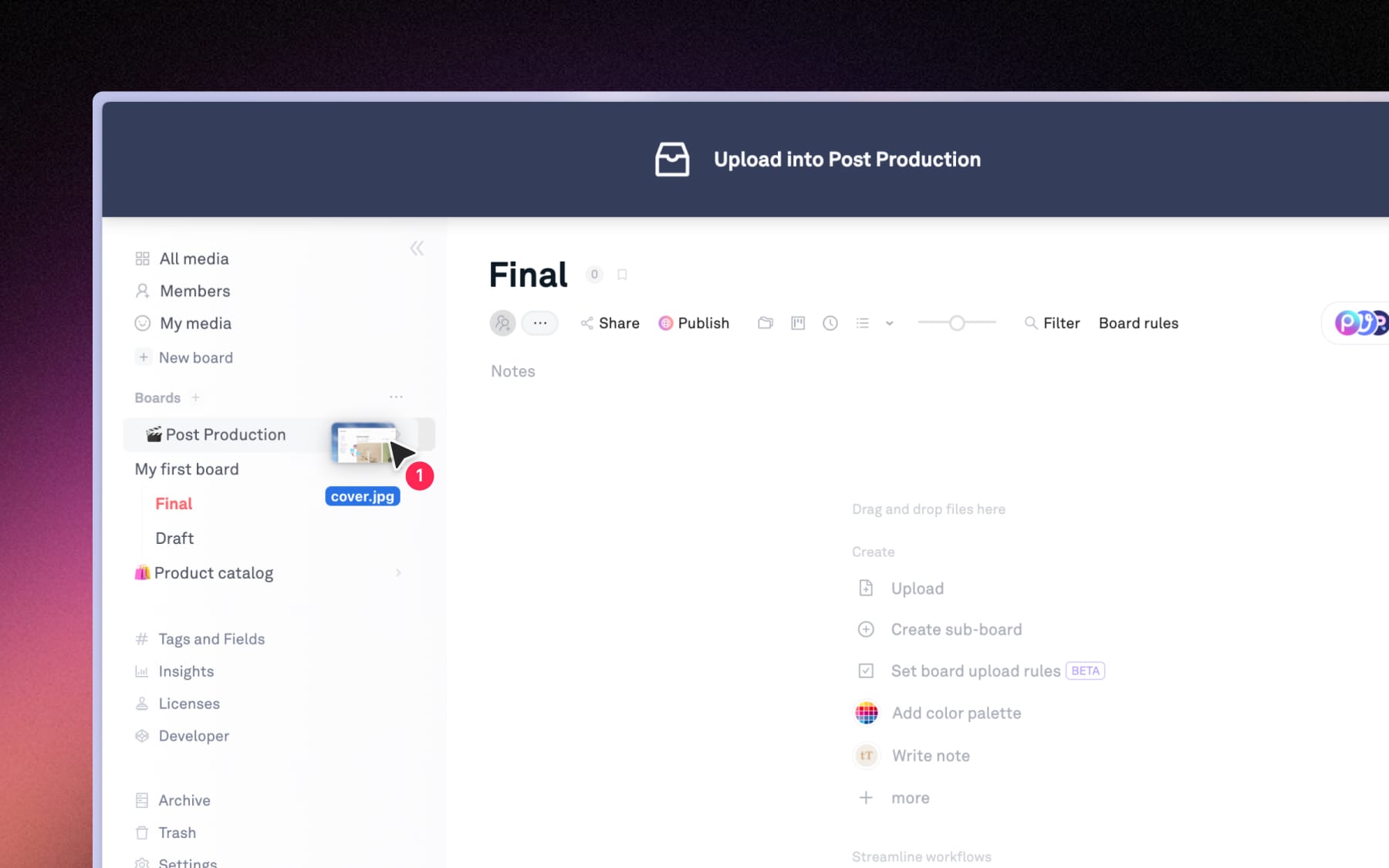
You can drag and drop files into different parts of your workspace, and where you drop them determines where they end up:
- Drop files directly into a board – (or sub-board) to upload them in that board
- Drop files onto a board in the left sidebar – the files upload into that board.
- Drop files into the All media page – Playbook automatically creates a new board and places the assets there.
Upload files
Drag and drop files or folders into a board (Playbook preserves the folder structure by automatically creating sub-boards to match it). Or select (+ New) to choose files from your devices.
Import from external sources
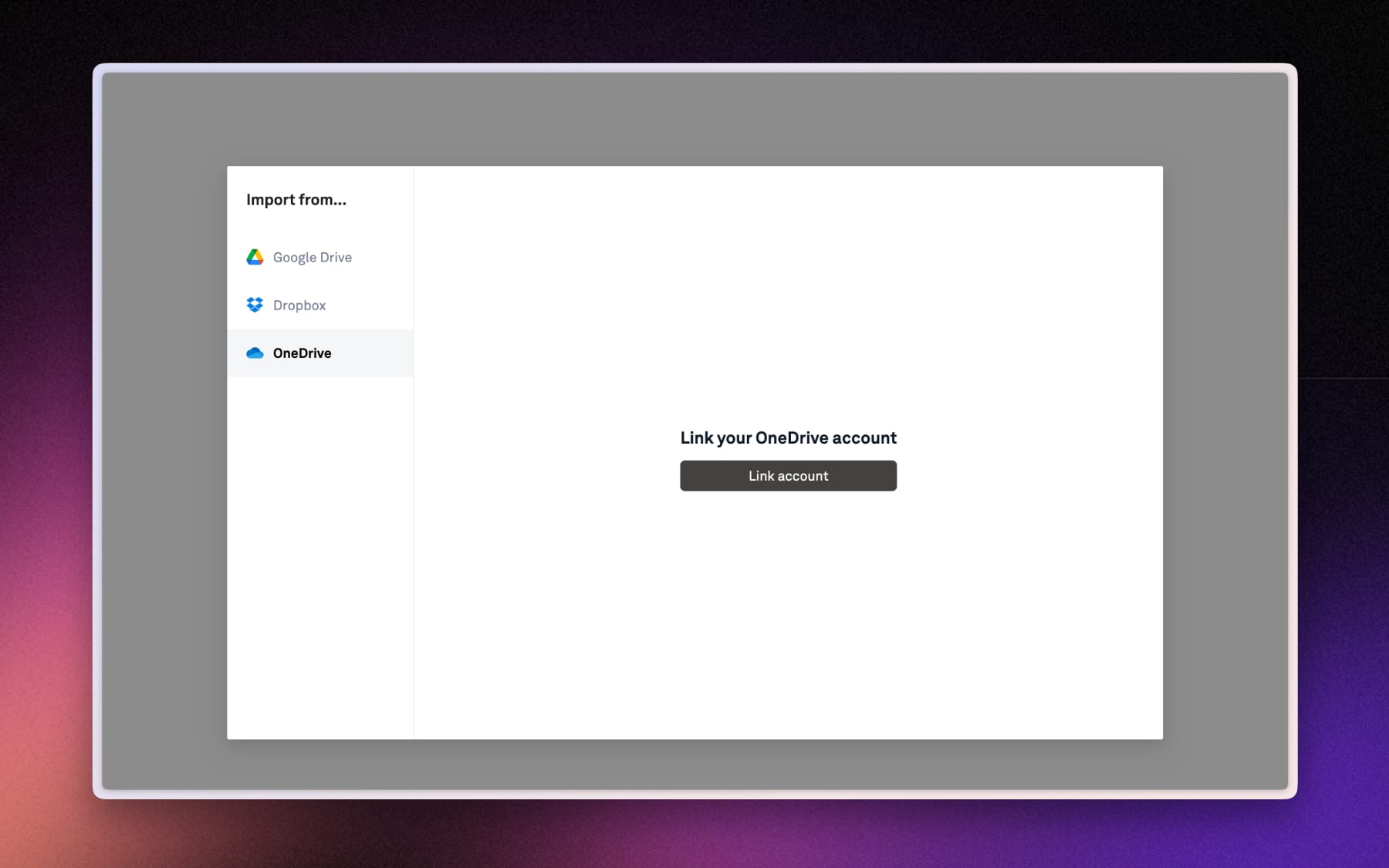
If your work already lives somewhere else, you don't need to download and re-upload it manually. You can import files directly into a board from Google Drive, Dropbox, OneDrive.
Add more than just files
You can create notes, add links and colors directly inside a board.
Notes
Create a note directly in a board to jot down quick ideas or use it for internal communications.
Links
You can directly copy and paste a url to your board. With instant previews, they're easy to recognize and revisit later.
Color swatches
Create color swatches directly into a board to save hex codes for brand colors, palette options.