Using groups to manage iterations
Learn how to use Groups to combine multiple version or similar assets behind a single, clean preview.
In Playbook, you can Group multiple versions or similar assets together. Think of it like a physical stack of papers: the "Final" version sits on top, while all the previous iterations, or similar shots are tucked underneath. This keeps your board looking clean and tidy while ensuring every file is still accessible.
Two ways to create a group
Whether you are organizing one file or hundred, you can create a Group in seconds using drag-and-drop or the Batch actions.
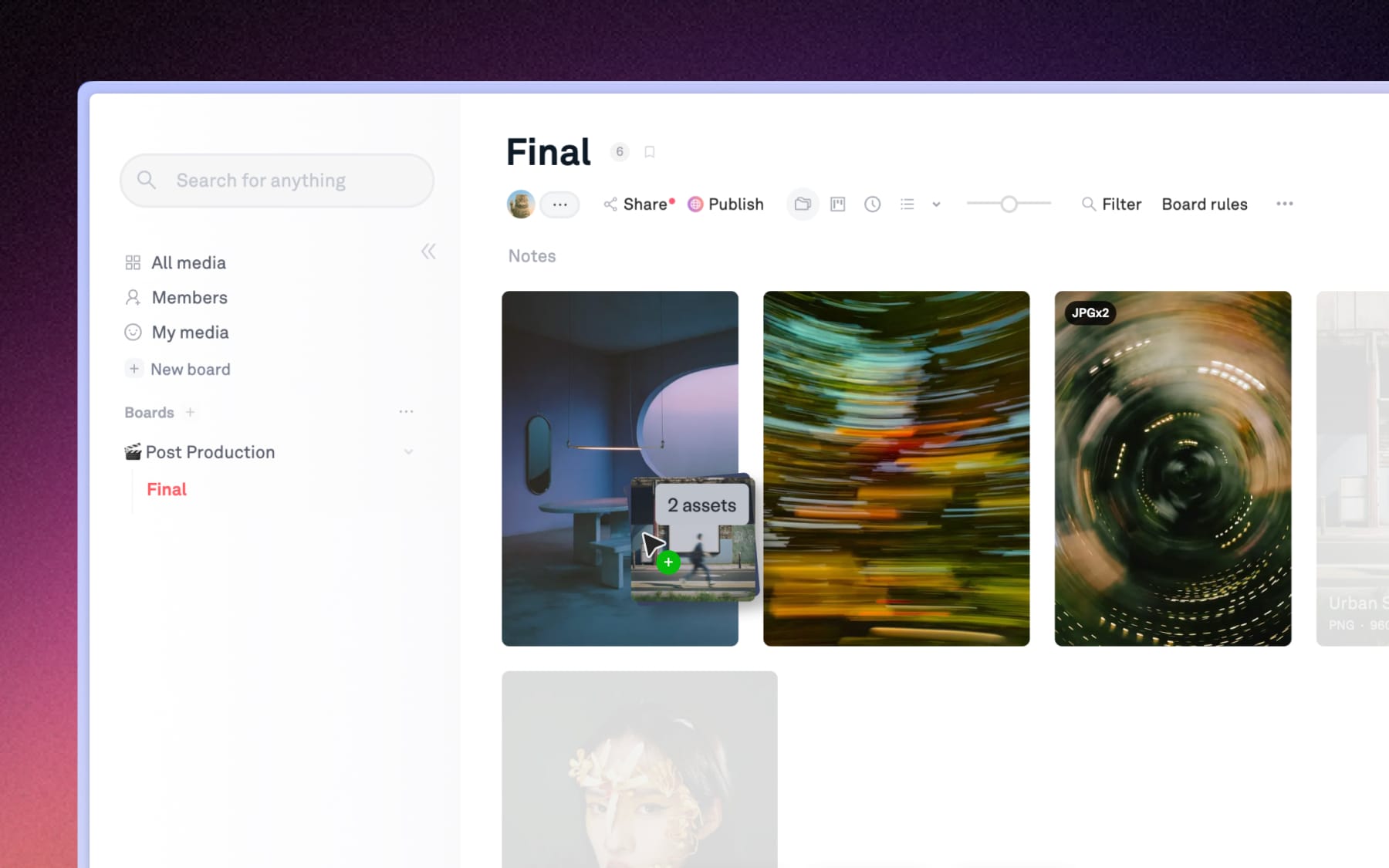
Option A: Drag-and-drop (best for 2-3 assets)
- Drag an asset: Click and holder the asset you want to move.
- Stack it: Drop it directly on top of another asset that you want to group.
Option B: Batch actions (best for large groups)
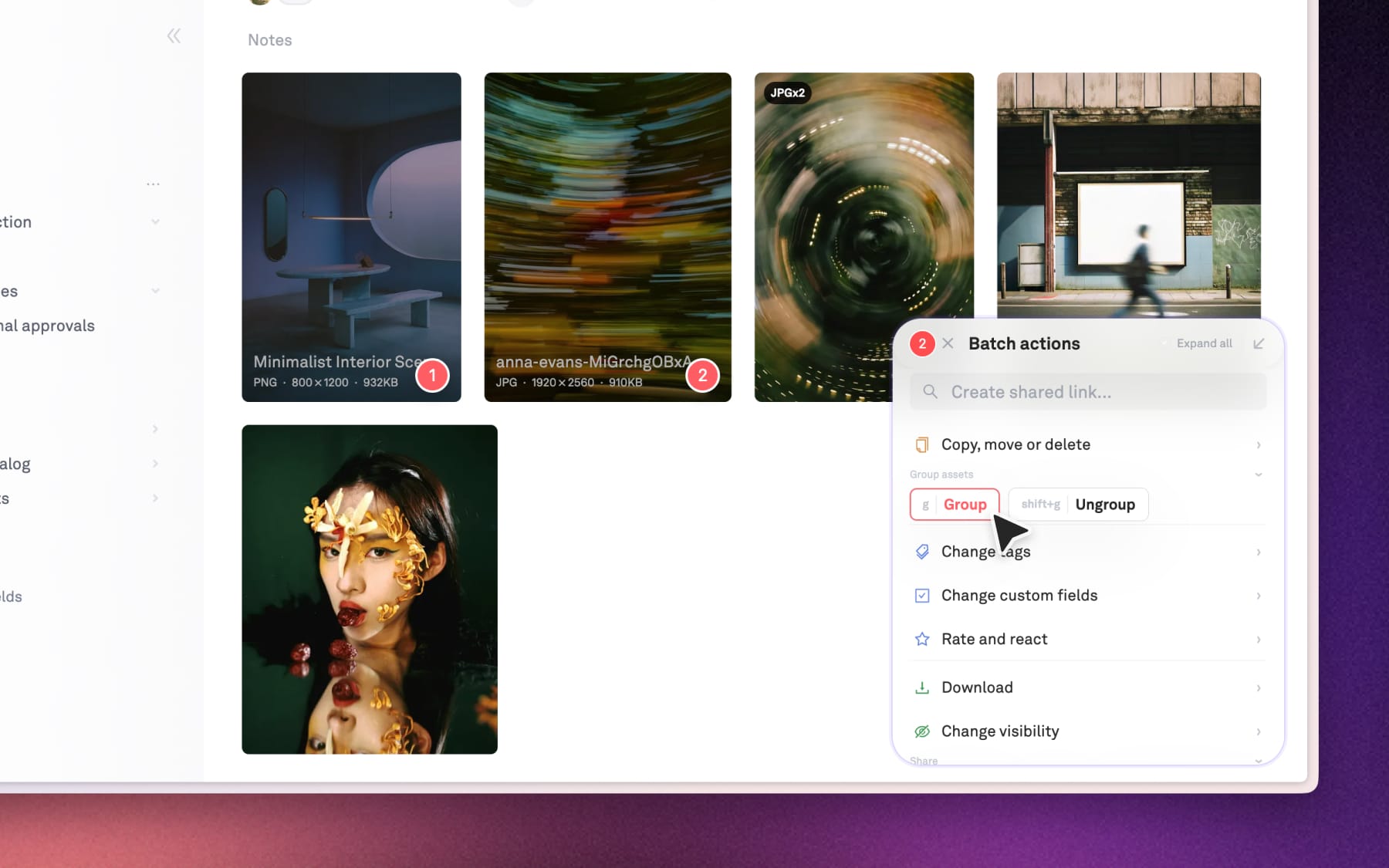
- Multi-select: Click the checkmark on the assets you want to move.
- Open Batch actions: Click the Batch actions button at the bottom right of your screen
- Select 'Group': Choose the group option from the menu to instantly stack all the selected assets into one single preview.
Tips: After selecting assets you want to group, press G to group them instantly for faster workflow.
How to ungroup
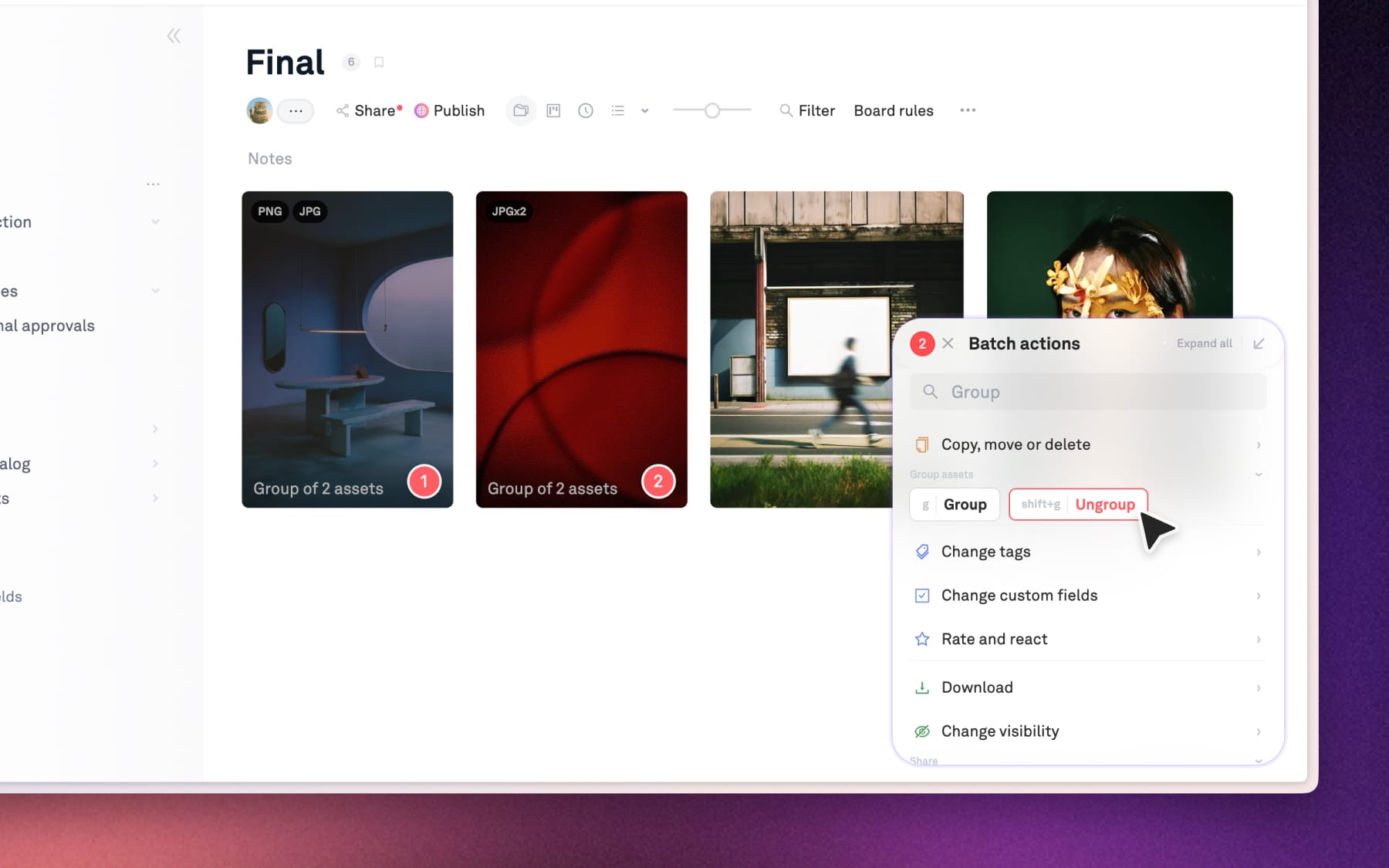
From the Gallery view (Bulk ungroup)
- Select the group (or multiple groups) you want to dissolve.
- Click Batch actions at the bottom right.
- Select Ungroup or press SHIFT+G to return all assets to the original board.
From the Asset details view (Individual removal)
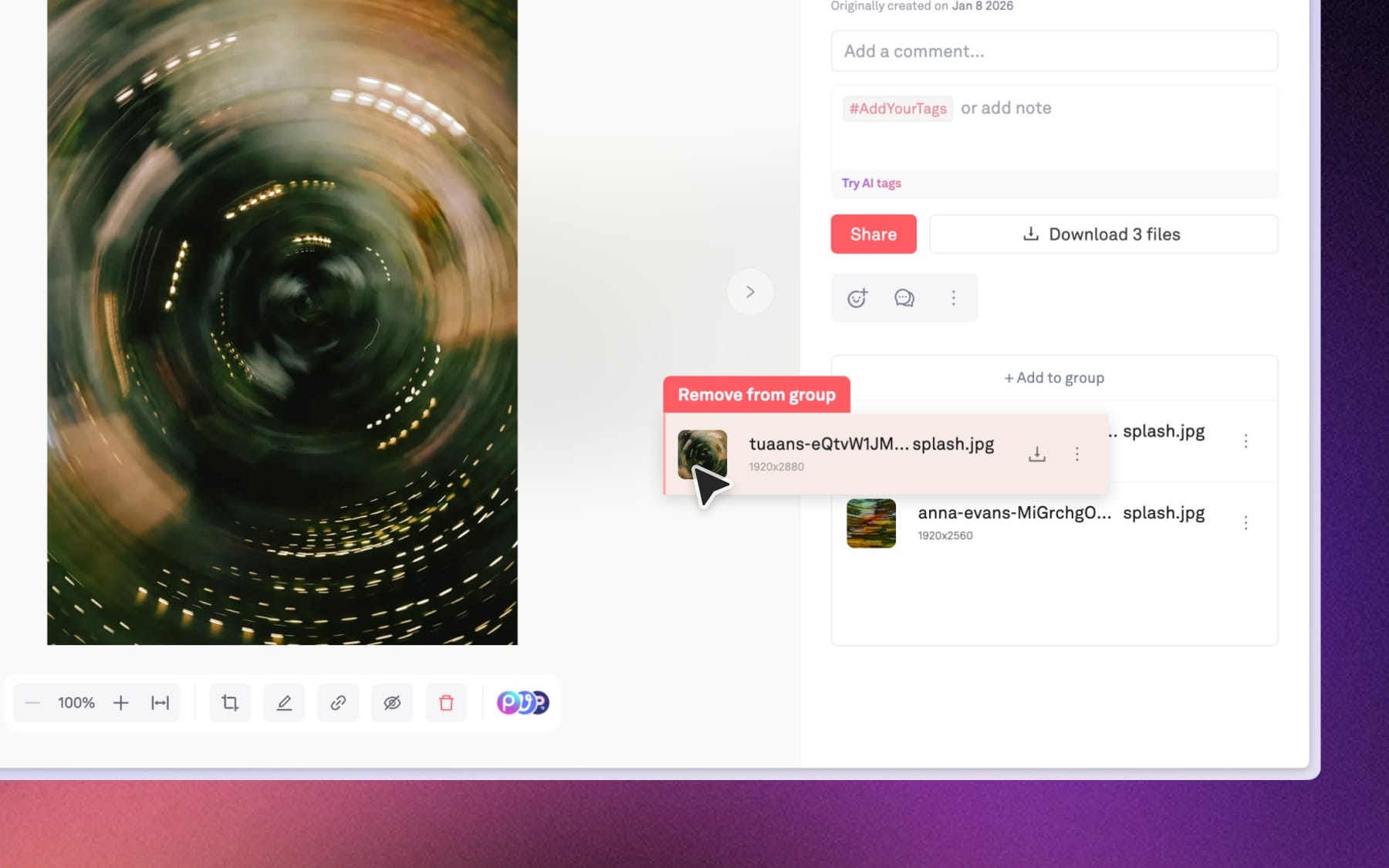
- Open the group to see the list of assets.
- Click and hold an asset, then drag it to the left outside of the group area to remove it from the stack.
- Or click the three dots (•••) next to any file → select Remove from group.