
Publish brand guidelines
Learn how to turn a board of logos, type, and color into a published brand guidelines page your partners can always reach.
A brand guidelines page is a published board. You keep the real files in Playbook, pick a brand template, and hand out one link. When you swap a logo or add a new lockup, the page updates itself, so nobody is working from a stale download.
Build the brand board
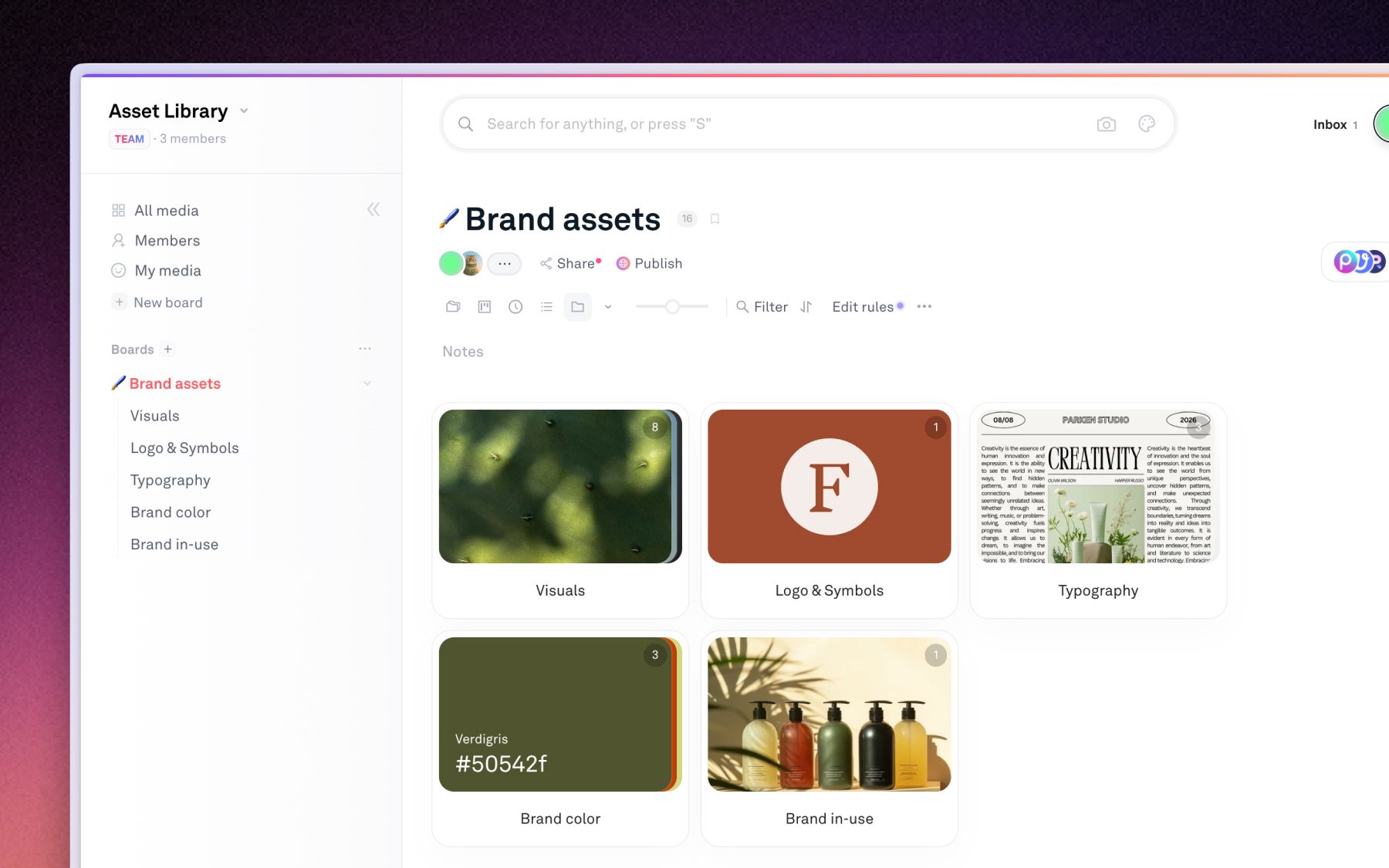
Create a board for the brand and split it into sub-boards that match how people ask for assets.
- Logo: primary marks, lockups, and the clear-space rules.
- Typography: the typefaces and any licensed webfont files.
- Color: swatches and the exact values.
- Art direction: approved photography and the shots that show the brand in use.
Label assets so nothing ships wrong
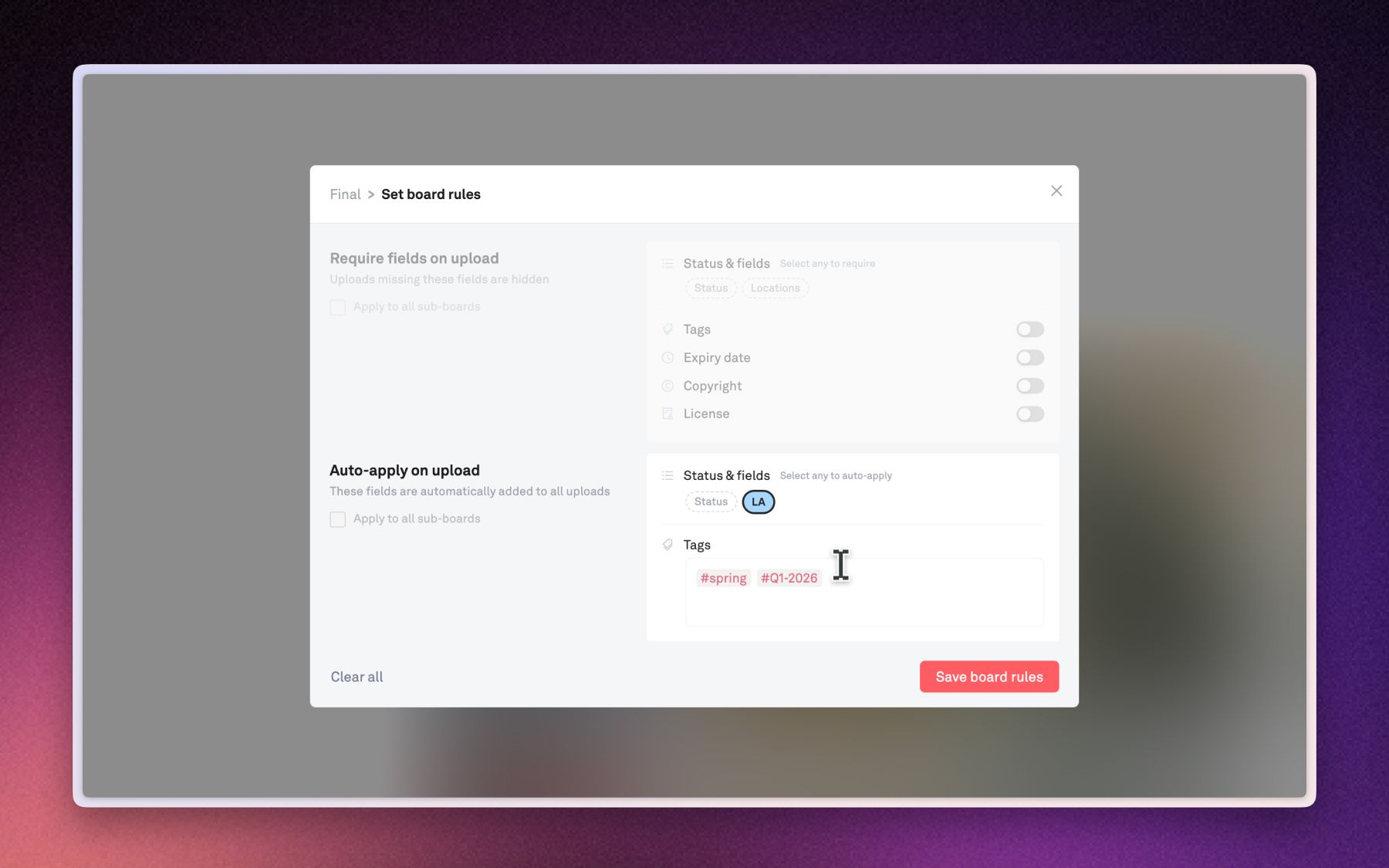
Add tags and custom fields for the things that get a logo misused: usage rights, market, and expiry.
- Board rules: set them once and every later upload is tagged automatically.
- Required fields: hold a file back until someone fills in the fields you marked as required, so a half-labeled asset never reaches the public page.
See Custom fields & status for the field types.
Pick a brand template
Click Publish in the top header, then choose a template built for brand work. Every one of these is live in the template gallery, so you can open it before you commit:
- Creative Agency Brand Guideline: a full guidelines document with a section per rule.
- Amplify Visual Identity: identity-first, built around palette, typeface, and mark.
- Silken Brand Portal: a portal that mixes guidance with downloadable assets.
- The Nueve Brand Portal: a compact single-mark portal, good for a sub-brand.
Customize your site
Open Template Settings to set your logo, cover, typography, and page slug, then check Desktop preview and Mobile preview before you go live. The full walkthrough of the publish editor, presets, and per-section editing is in Publishing your board.
Share the link and control access
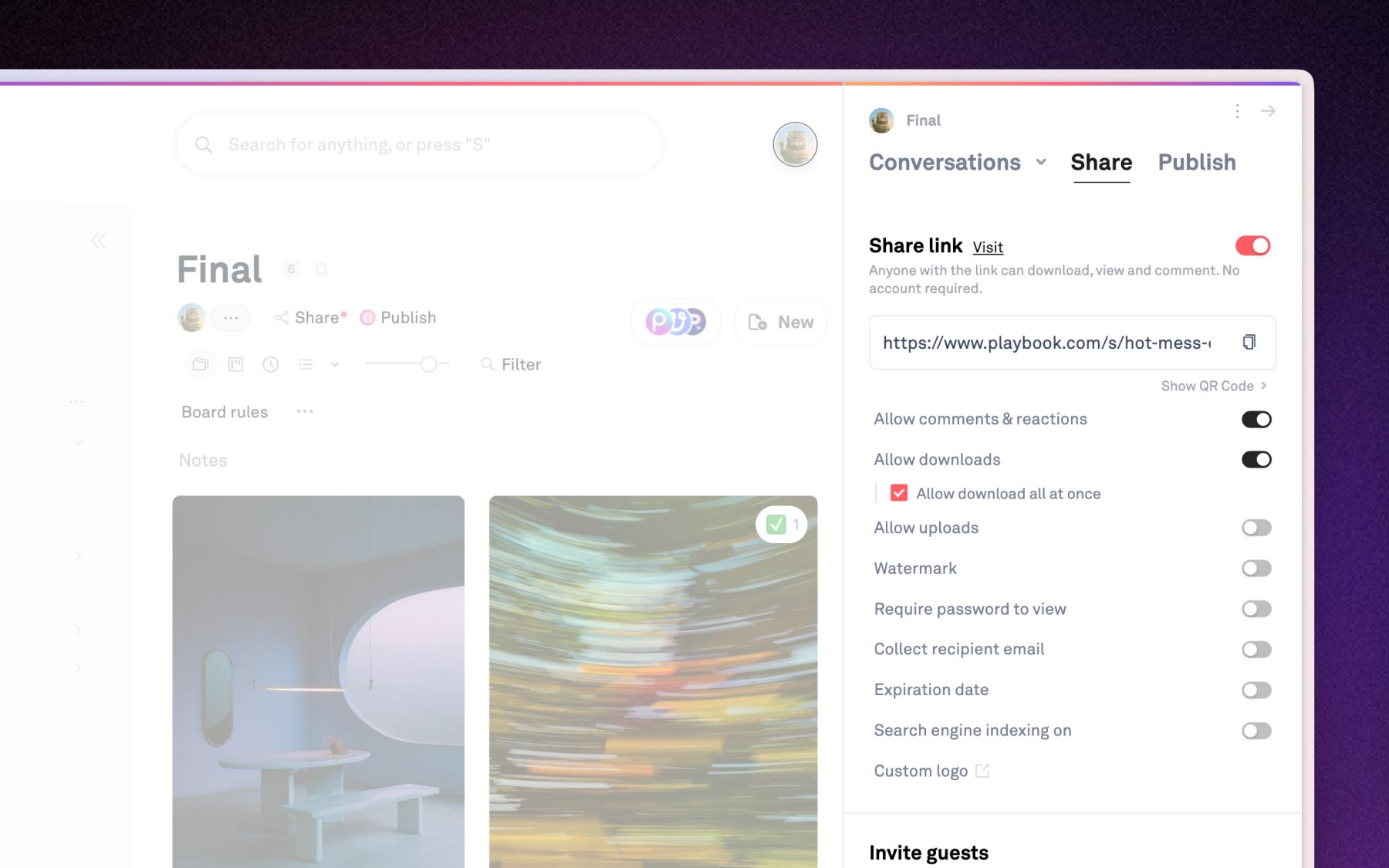
Toggle the link on and send it. Layer controls on top depending on who is getting it.
- Password: for guidelines that are not public yet.
- Expiry: for a launch embargo or a time-boxed partner.
- Downloads: leave them on when partners need the real files, off when the page is reference only.
More options in Sharing controls & protection.
Expected behavior
Edits to the internal board show on the published page in real time, so you never reissue the link. An asset that is still missing a required field stays hidden from the page until the field is filled.